How to control an iPad remotely from iPhones and Macs


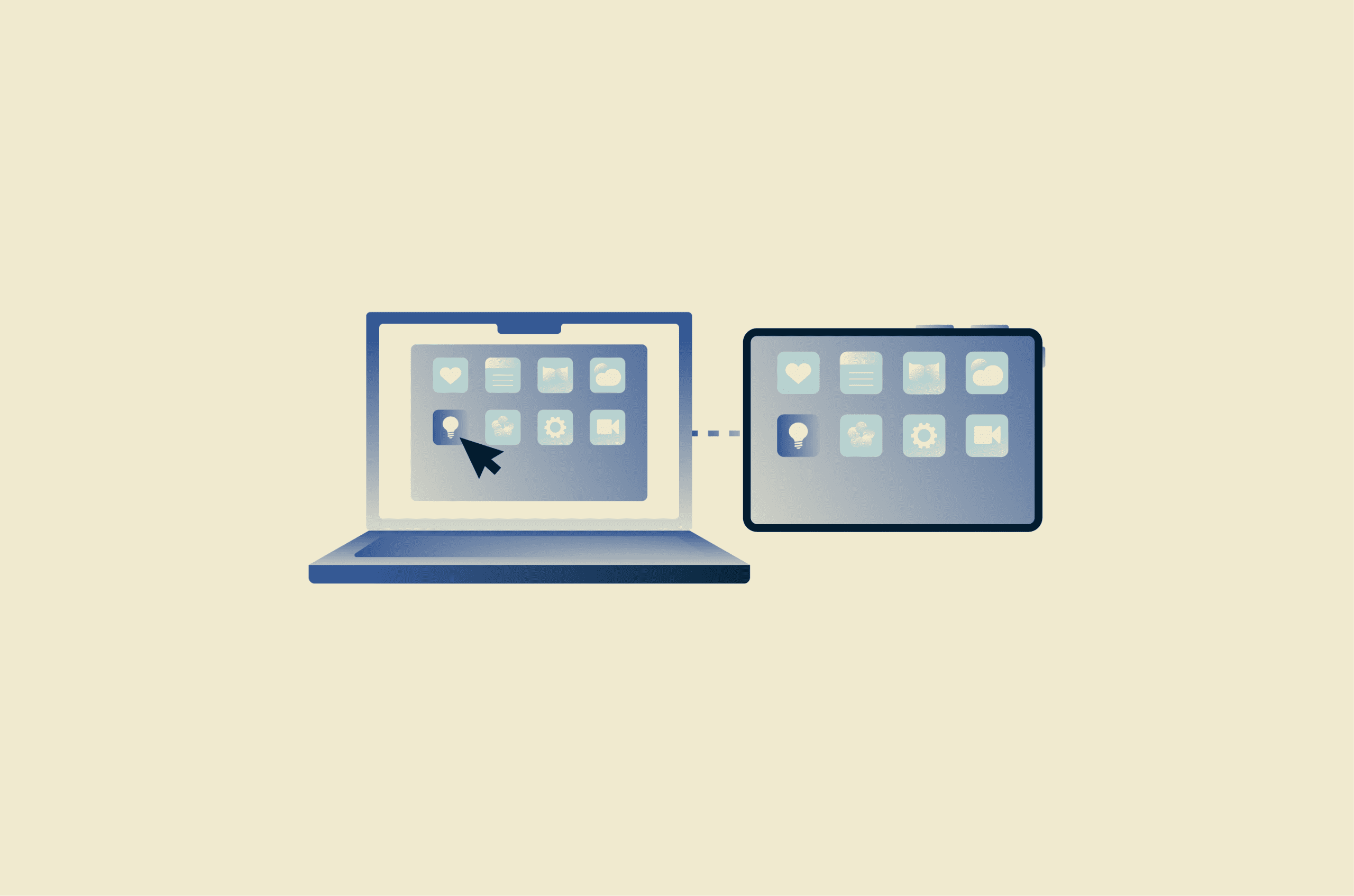
If you need to access or control your iPad without using it directly, the available options can vary widely depending on your setup and what you’re trying to do. Apple includes several features that let you control an iPad from another device, but most of these are designed for nearby use rather than full remote access. For example, tools like Universal Control and Switch Control allow you to interact with an iPad from a Mac or another Apple device when they are close together and signed in to the same account.
For control over longer distances, third-party apps offer remote access features, though they may come with limitations, added setup requirements, or security considerations. The right option depends on how you plan to use your iPad, whether your devices are nearby, and how much control you need. This guide breaks down the available methods, their constraints, and what to expect from each.
How to remotely control an iPad from an iPhone or another iPad
Controlling an iPad from another device can help with troubleshooting, app management, or accessing content without physically touching the device. Apple’s built-in features allow you to perform a limited set of actions on a local network, while third-party apps may provide more control without needing physical access to the iPad.
Method 1: Use the Control Nearby Devices feature
Control Nearby Devices is an iOS accessibility feature that allows quick access or assistive use without complex setup. When first used, it may request local network permission so the devices can discover and connect to each other over the same Wi-Fi network.
Note: Both devices must be signed into the same Apple Account.
Steps to set it up:
- Make sure the iPad you want to control is on the same Wi-Fi network.
- Go to Settings on the iPhone or iPad you’ll use as a remote control and select Accessibility.
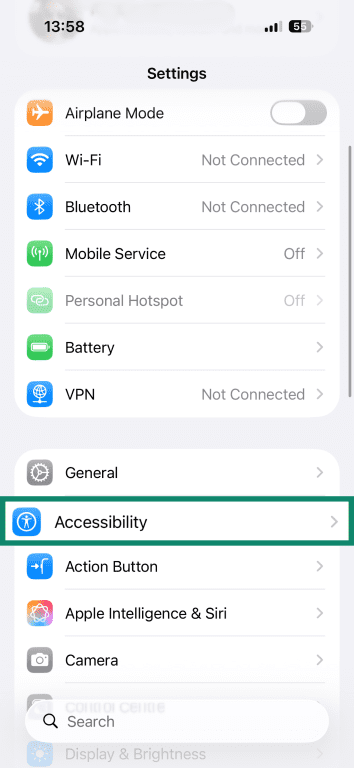
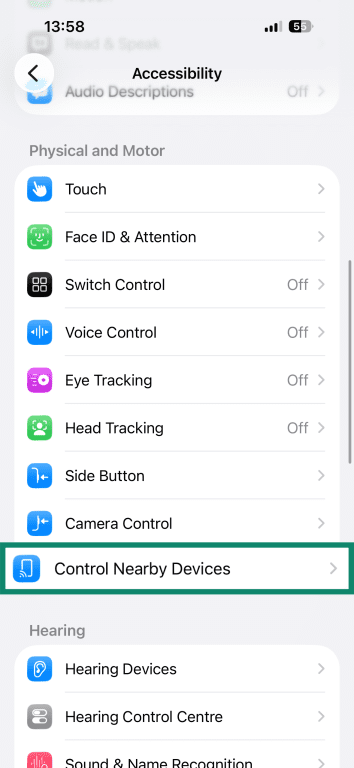
- Scroll down and tap Control Nearby Devices.
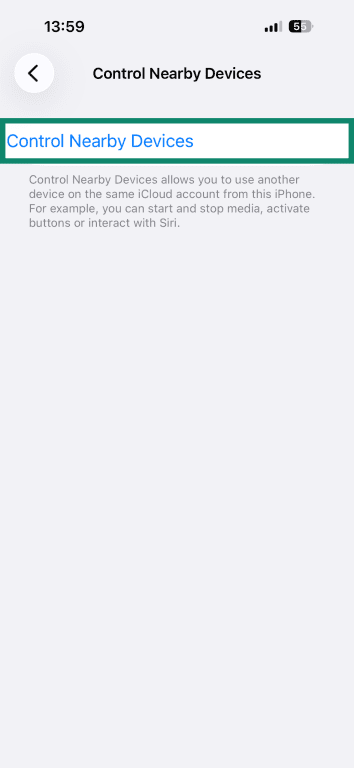
- Turn on Control Nearby Devices.
- Select the device from the list.
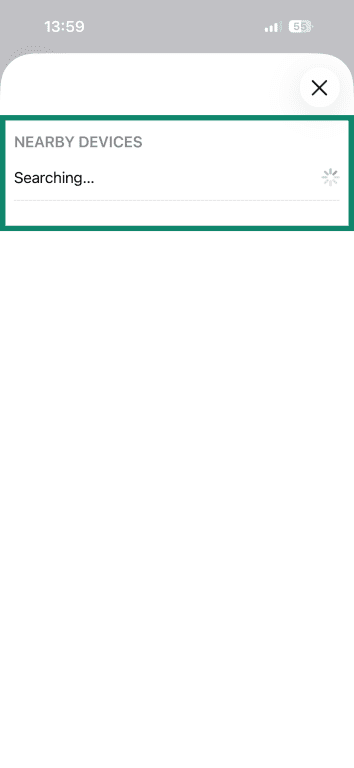
- Follow on-screen prompts to pair the devices, if they appear.
- Once connected, you can open the Control Center, open the App Switcher, activate Siri, show the Home Screen, see notifications on the lock screen, and control media playback.
Method 2: Use a third-party remote access app
If you need full, remote access to your iPad, there are several apps on the App Store that you can consider. For example, TeamViewer and AnyDesk are popular apps that allow one device to access and control another remotely. These apps can provide more flexibility than built-in iOS options, though they may require subscriptions.
How to remotely control an iPad from a Mac
Using a Mac to control an iPad can help with multitasking, troubleshooting, or managing content from a larger screen. Similar to iPhone-to-iPad control, some methods are designed for nearby devices, while others aim to provide more extended access.
Method 1: Use Universal Control for nearby devices
Universal Control is a feature built into macOS and iPadOS that allows one Mac to share a mouse and keyboard with an iPad nearby. It’s ideal for users who want seamless multitasking across devices without cables or extra apps.
Steps to set it up:
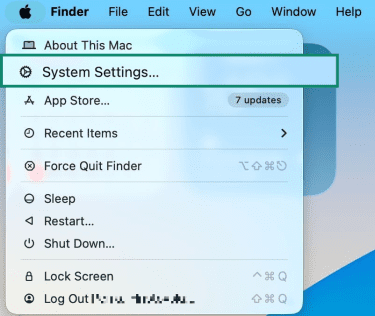
- On your Mac, open System Settings.
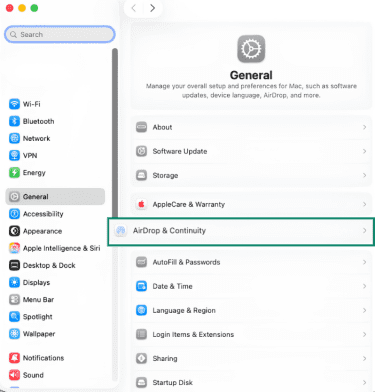
- Go to General and click AirDrop & Continuity (or AirDrop & Handoff, depending on your macOS version).
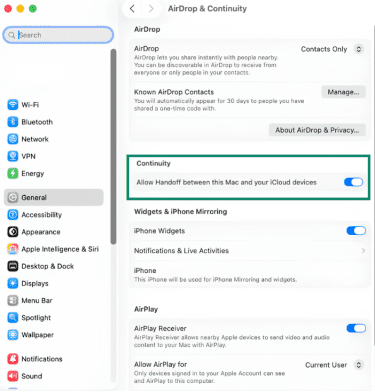
- Toggle on Allow Handoff between this Mac and your iCloud devices.
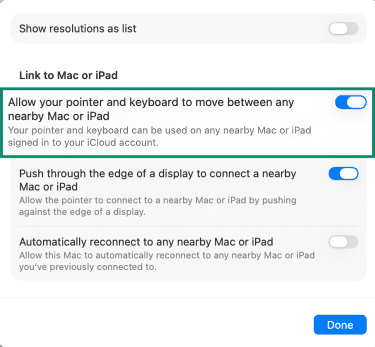
- Navigate to Displays and then Advanced.
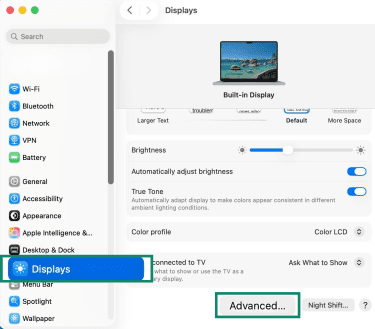
- Enable Allow your cursor and keyboard to move between any nearby Mac or iPad.
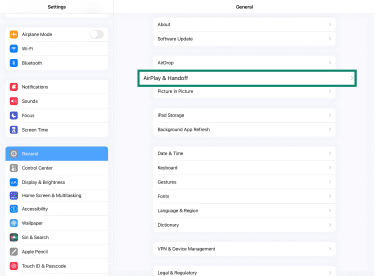
- On the iPad, go to Settings, select General, and tap AirPlay & Handoff (or AirDrop & Continuity, depending on your iPadOS version).
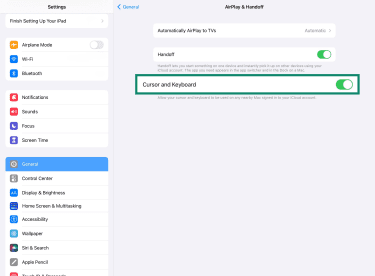
- Turn on Cursor and Keyboard.
- Make sure both devices are signed into the same Apple Account and on the same Wi-Fi network.
- Place the iPad near your Mac and move the Mac cursor toward the iPad screen.
- Once connected, you can use your Mac mouse to navigate the iPad and your keyboard to type.
Method 2: Use the Switch Control feature
Switch Control is an accessibility feature that allows one Apple device to control another. Using an adaptive device or keyboard inputs, you can navigate and interact with the interface of your iPad. It’s important to note that there is no screen mirroring when you use Switch Control, so this method won’t work if you can’t see your iPad screen.
Steps to set it up:
- On your Mac, open System Settings.
- Go to Accessibility and select Switch Control.
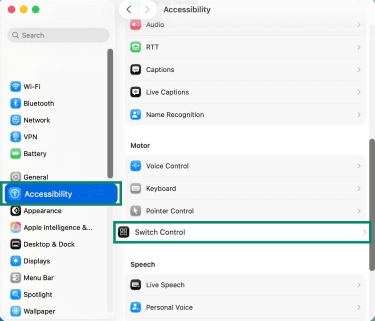
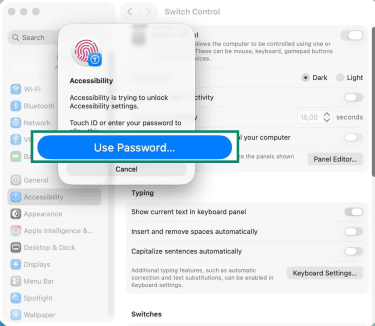
- Enable Switch Control (this may prompt you to enter your password).
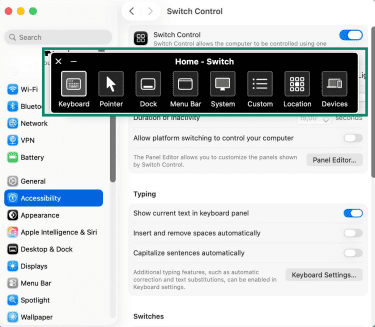
- Click Devices on the Switch UI and choose Add New Device to pair your iPad.
- On the iPad, go to Settings and access Accessibility.
- Enable Switch Control and follow the on-screen instructions to connect the Mac and iPad.
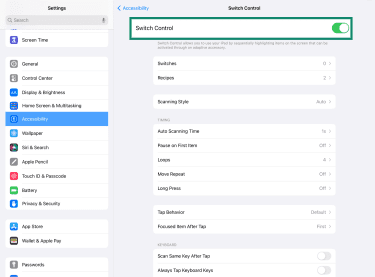
- Use the Mac to navigate menus, select apps, or type using scanning.
Method 3: Use a third-party remote control app
Just like on iPad and iPhones, third-party apps can allow a Mac to access and control an iPad remotely. These apps are useful when devices aren’t physically close, though Apple’s system restrictions may still limit full control.
Learn more: If you’re on Windows, check our tutorial on how to access devices remotely with RDP.
Troubleshooting iPad control issues
Remote control of an iPad can run into occasional problems, ranging from connection issues to slow performance. Understanding common issues and their solutions can help restore smooth operation.
The iPad isn’t discoverable on the controlling device
Sometimes, the controlling device can’t see the iPad, making it impossible to connect. Below are some possible fixes you can try:
Check your network connection and settings
- Make sure both devices are on the same Wi-Fi network.
- Ensure Bluetooth is turned on if the method requires nearby device detection.
- If you’re using a VPN, go to the settings and look for an option to enable local network access or turn on split tunneling.
Check your device settings
- If you are using built-in tools, make sure that both devices are signed into the same Apple Account.
- Verify that Handoff is enabled.
- Check that the iPad is powered on and not in sleep mode.
- Restart both devices to refresh connections.
Remote session is slow
A slow remote iPad session can make navigation frustrating or unresponsive. Below are some common causes and potential fixes you can employ.
| Cause | Recommended solution |
| Unstable network connection (high latency, packet loss, congestion) | Use a wired Ethernet connection where possible. If using Wi-Fi, move closer to the router and limit other active devices. |
| Low network bandwidth | Ensure sufficient bandwidth (typically 5Mbps minimum for basic use, 15Mbps+ for high-resolution sessions). |
| High resolution and high color depth | Lower the screen resolution (e.g., to 1024×768) and reduce color depth to 16-bit. |
| Background apps using too much CPU resources | Close unnecessary applications and stop large downloads during the session. Turn off Low Power Mode on iPad/iPhone if it affects performance. |
| Outdated remote access app or operating system | Update both the local and remote devices to the latest version of the app and OS. |
Touch, keyboard, or mouse not working
Input issues can prevent full control of the iPad. Watch for the following signs and try these troubleshooting steps:
- Confirm proper pairing and connection: Ensure the controlling device and the iPad are correctly paired and both show as connected.
- Verify accessibility settings: Make sure features like Universal Control/Switch Control are enabled and configured correctly on both devices.
- Check app permissions: Third-party apps must be granted the appropriate permissions (e.g., accessibility, local network, Bluetooth, or screen recording) for interaction and control features to work.
- Restart the session or devices: Ending the remote session and restarting the controlling device or the iPad can refresh the connection.
iPad screen not showing up while using a third-party app
Sometimes the remote app connects, but the iPad screen doesn’t appear. To fix this, you can check:
- App settings: Ensure the app is installed and running on the iPad. Check that iPad/iPhone privacy settings are correctly configured, and restart both devices before relaunching the app.
- Screen recording permissions: On iPadOS, remote viewing works through Screen Recording and typically needs to be turned on manually from the Control Center. Recording may be blocked if certain sensitive or digital rights management-protected content is on screen, and it may not work at the same time as AirPlay screen mirroring.
- App status and foreground requirements: The remote support app must stay in the foreground for the video feed to start. If it’s backgrounded or the iPad locks during setup, the session may remain connected but show no image because the system stopped the broadcast.
- Software compatibility: Mismatched app versions between the iPad and the controlling device can cause a black screen. For example, an older desktop client connecting to a newer iPad app may allow chat or file transfer but fail to display video.
Security and privacy considerations
Being able to remotely control an iPad can be very convenient, but it may introduce risks. Understanding how data flows between devices, who can access it, and the security of third-party tools is essential to protect information on Apple devices.
Network security and data interception
Data sent between devices can be intercepted if the network isn’t secure. Public Wi-Fi networks, in particular, are vulnerable because other users on the same network could potentially capture unencrypted data. Even on private networks, weak passwords or outdated routers can reduce overall network security.
Unauthorized access
Unauthorized access happens when someone other than the intended user gains control of the iPad. This can occur if login credentials are stolen, accounts are shared, security settings are weak, or the user is tricked by vishing. Once access is gained, attackers could view sensitive information, change settings, or attempt to install unauthorized apps or profiles.
Third-party application risks
Third-party remote control apps can offer features that built-in iOS tools don’t, but they also introduce security risks. Apps from untrusted or unofficial sources may include malware, poorly encrypted connections, or data-sharing practices that compromise privacy. Even legitimate apps can be vulnerable if not updated regularly.
Jailbreaking risks
Jailbreaking removes many of the built-in security protections that normally safeguard an iPad and other iOS devices. It bypasses Apple’s code-signing and sandboxing mechanisms, allows apps to run with elevated privileges, and often requires disabling system integrity checks.
While this makes deeper remote access possible, it also weakens the device’s defenses against malware, unauthorized data access, and malicious network connections. As a result, using a jailbroken iPad for remote control can significantly increase the risk of compromise, especially if untrusted tweaks, repositories, or remote-access tools are installed.
Tips for secure remote iPad access
Controlling an iPad remotely can be convenient, but it’s important to follow best practices to keep the device and your data safe. The measures below help reduce the risk of unauthorized monitoring by blocking unknown access, securing communications, and limiting what apps and devices are allowed to do. They also help defend against social engineering tactics, such as fake Apple security alert scams, which try to pressure users into installing remote access tools or revealing login details.
- Be cautious with remote access requests: Only install or enable remote access software when you initiated the request or are working with a trusted provider. Unexpected prompts to install such tools may be part of a social engineering attempt.
- Enable two-factor authentication (2FA): 2FA adds an extra layer of security by requiring a second verification step in addition to your password. If Apple Account credentials are entered into a fake alert page, 2FA can stop the attacker from signing in without the verification code.
- Use apps that support end-to-end encryption (E2EE): E2EE ensures that data sent between devices is encrypted so only the sender and receiver can read it.
- Keep device OS updated: Keeping iPadOS updated ensures the latest security patches, bug fixes, and performance improvements are installed. Many forms of unauthorized monitoring rely on known vulnerabilities that are closed by regular updates.
- Use a virtual private network (VPN): A VPN encrypts your internet connection, which helps protect against interception on unsecured networks.
- Manage permissions: Limiting permissions helps reduce the risk of unauthorized access or hidden background activity. Regularly reviewing which apps and devices have screen recording, accessibility, or remote access rights can stop unwanted monitoring.
FAQ: Common questions about remote iPad access
Can I control an iPad remotely?
Can I control an iPad from an Android phone?
Can I control an iPad from a Windows PC?
Can I get a remote control for an iPad?
What is the best way to control an iPad remotely?
Is remote iPad control secure?
Explore the web with greater privacy
Get ExpressVPNSign up today for a chance to win FIFA World Cup 2026™ tickets.