




Need a VPN for Your Chrome Browser?
Find Out More HereThe ExpressVPN browser extension works as a full proxy-based VPN, while also enabling you to both control the ExpressVPN apps and use a full VPN on your Chrome, Firefox, Edge, Brave, and Vivaldi browsers.
There are two modes available in this browser extension:
- Remote Control Mode: Controls the ExpressVPN desktop app. All internet traffic on your device is encrypted through a VPN tunnel.
- Proxy Mode: Runs independently to the desktop app and provides limited privacy protection. Only your browser traffic is encrypted.
To use Remote Control Mode, you need to download and activate at least one of these ExpressVPN apps:
Note: Remote Control Mode is not available in the browser extension for Chromebook or Meta Quest.
Jump to…
How to download
How to set up
Features and how to use them
Using with the ExpressVPN apps
How to change browser extension mode
How to use dark mode
Errors and fixes
How to uninstall
How to download
We’ll use Google Chrome as an example of how to install the ExpressVPN browser extension, but the procedure is very similar across all browsers.
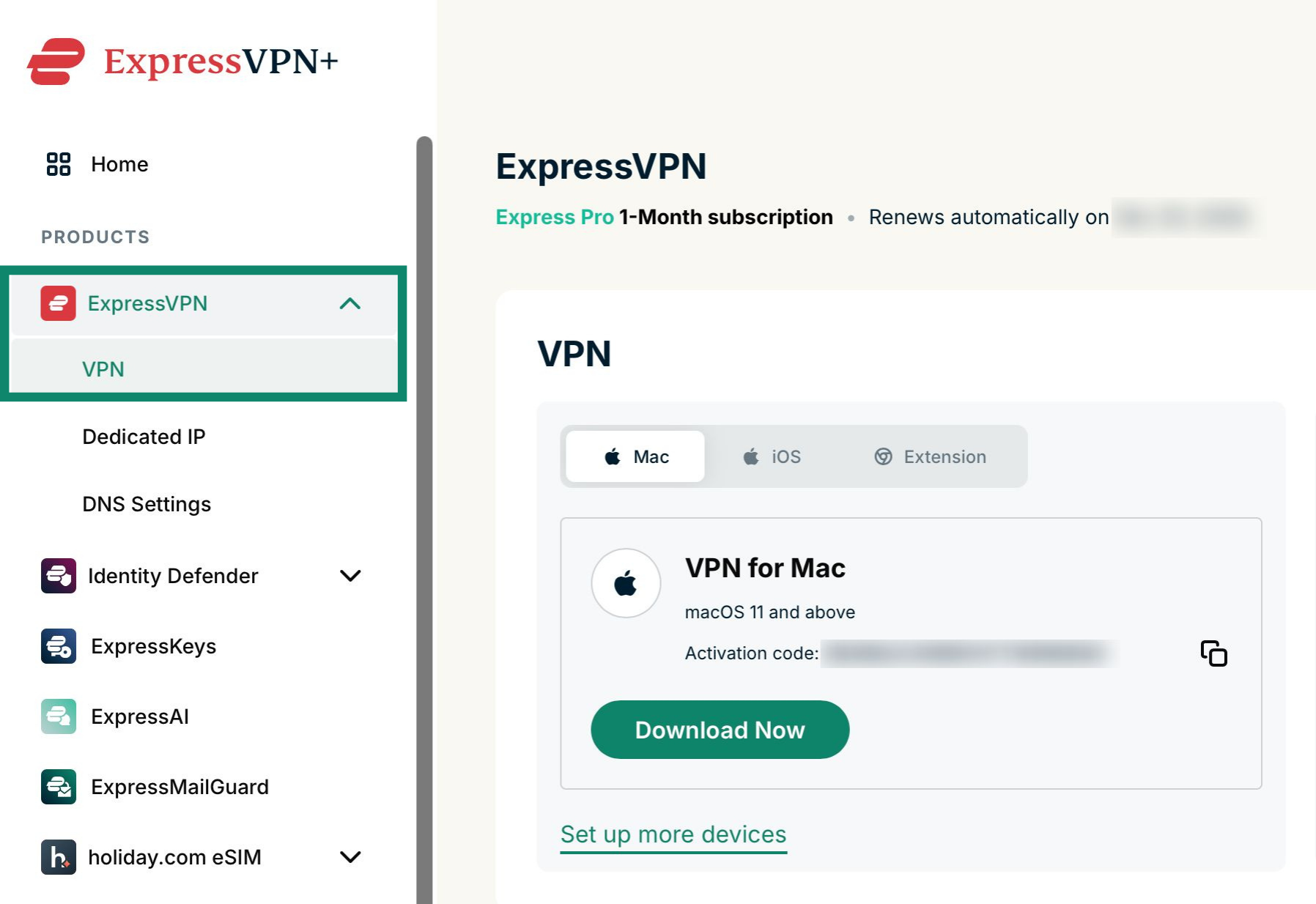
- Go to the ExpressVPN setup page. If prompted, log into your ExpressVPN account and provide a verification code (you’ll receive it via email).
- Select ExpressVPN, then click VPN using the left-placed sidebar.


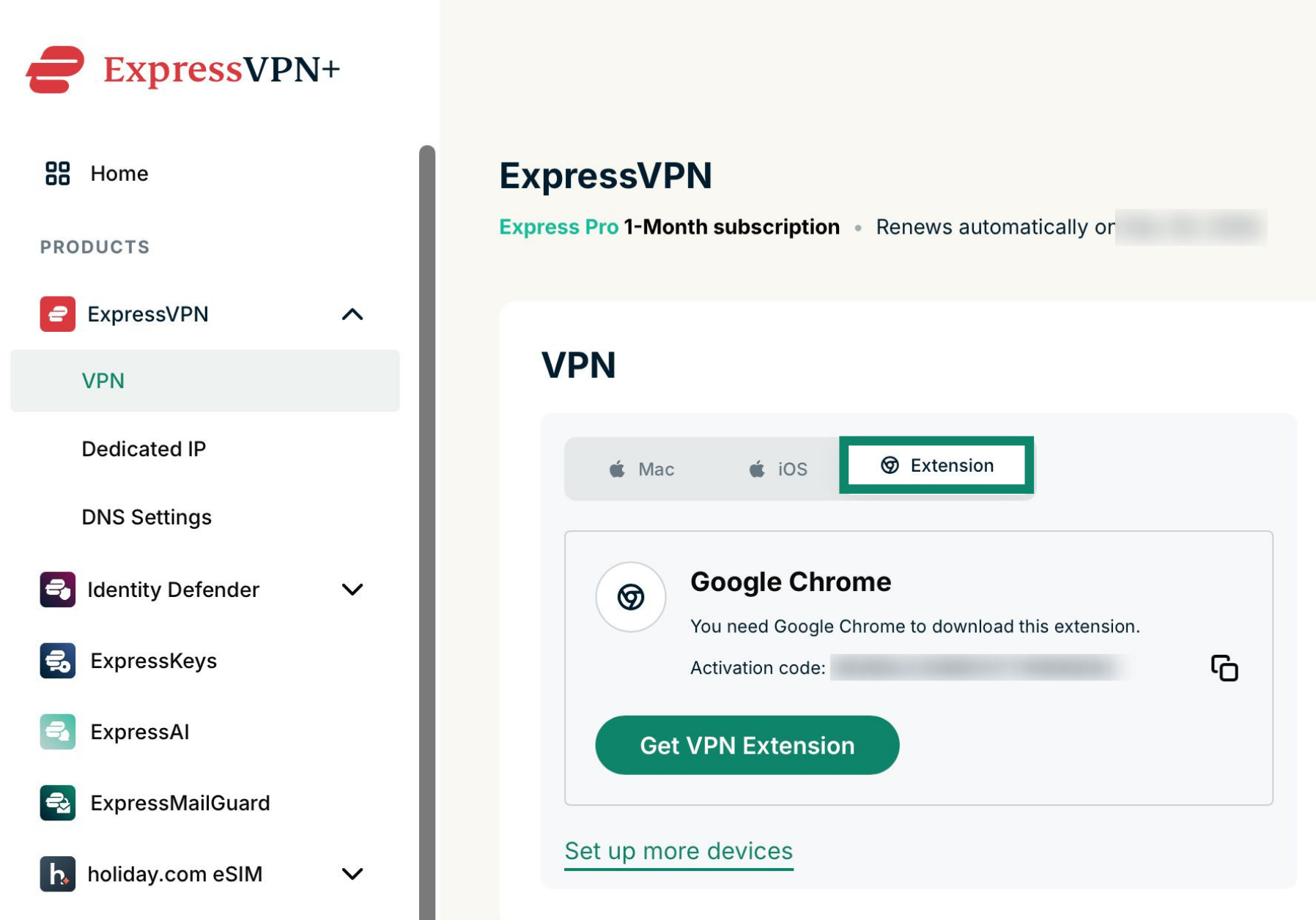
- Pick Extension and your browser will be detected. Click Get VPN Extension.


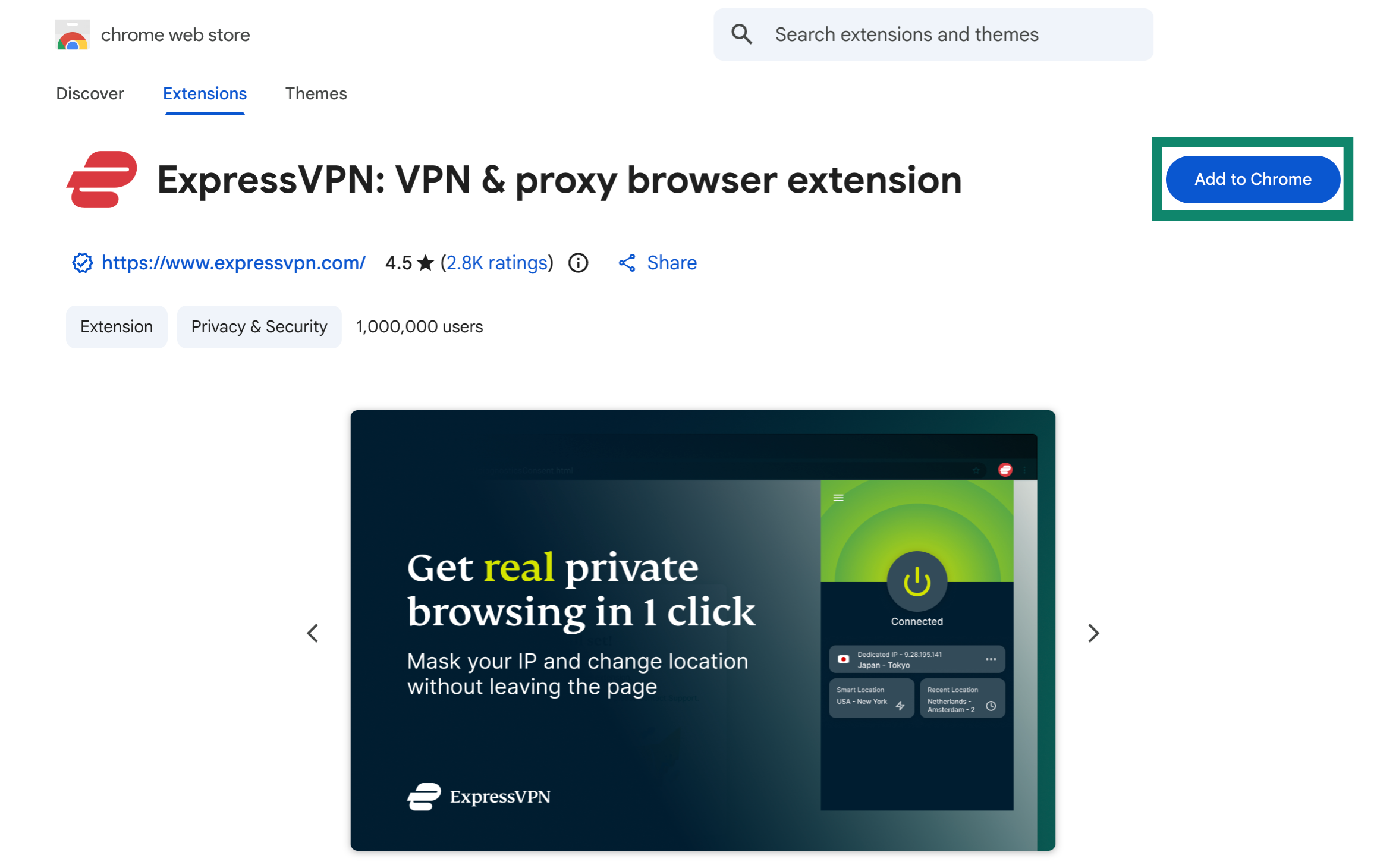
- To start the installation, click Add to Chrome.


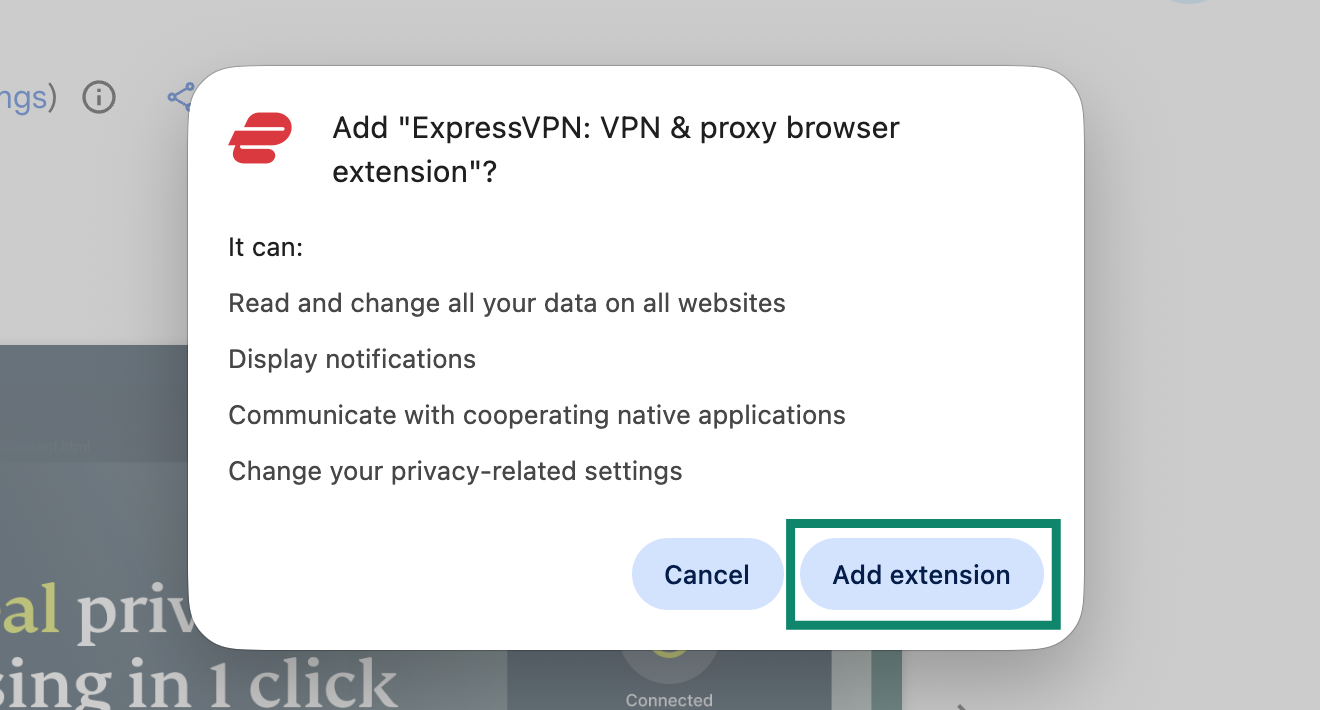
- Confirm by clicking Add extension.


Need help? Contact the ExpressVPN Support Team for immediate assistance.
How to set up
Once installed, the browser extension will detect whether or not the ExpressVPN desktop app is installed on your device:
If the desktop app is installed
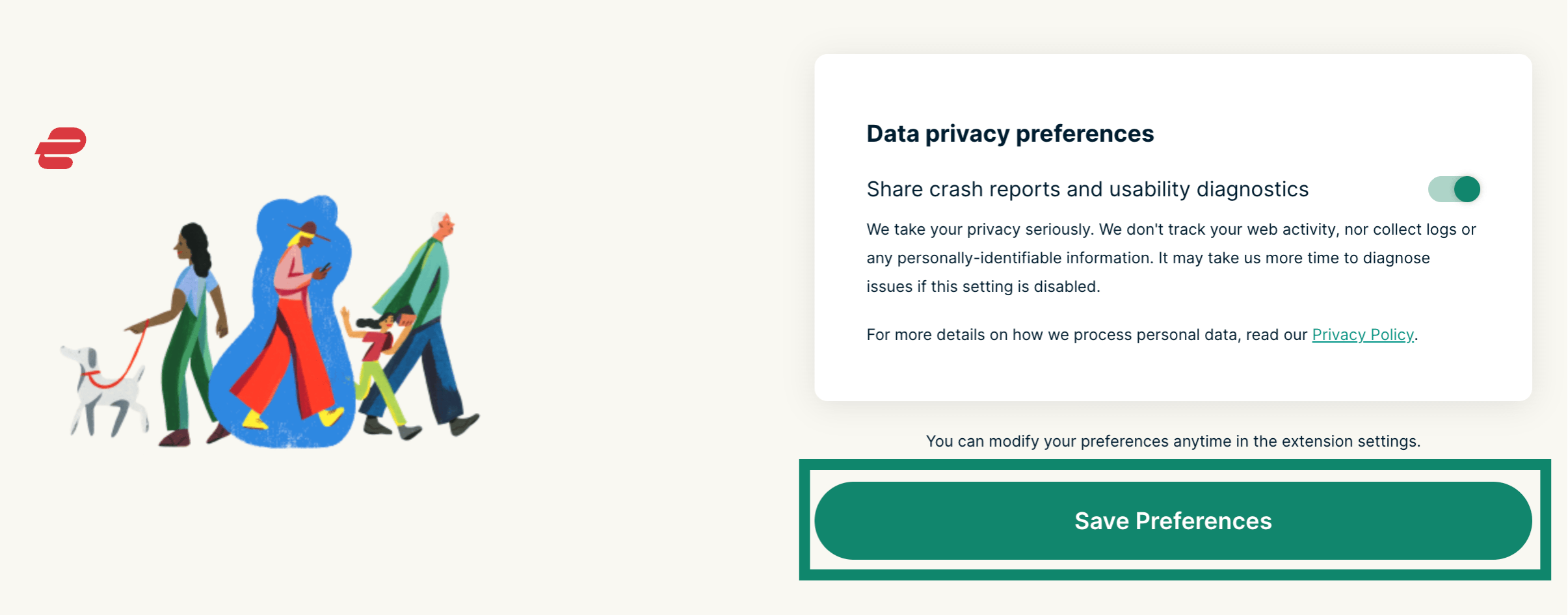
- You will be asked whether you want to share crash reports and usability diagnostics. Select your preference, then click Save Preferences.


- The browser extension is now ready to use.
If the desktop app is not installed
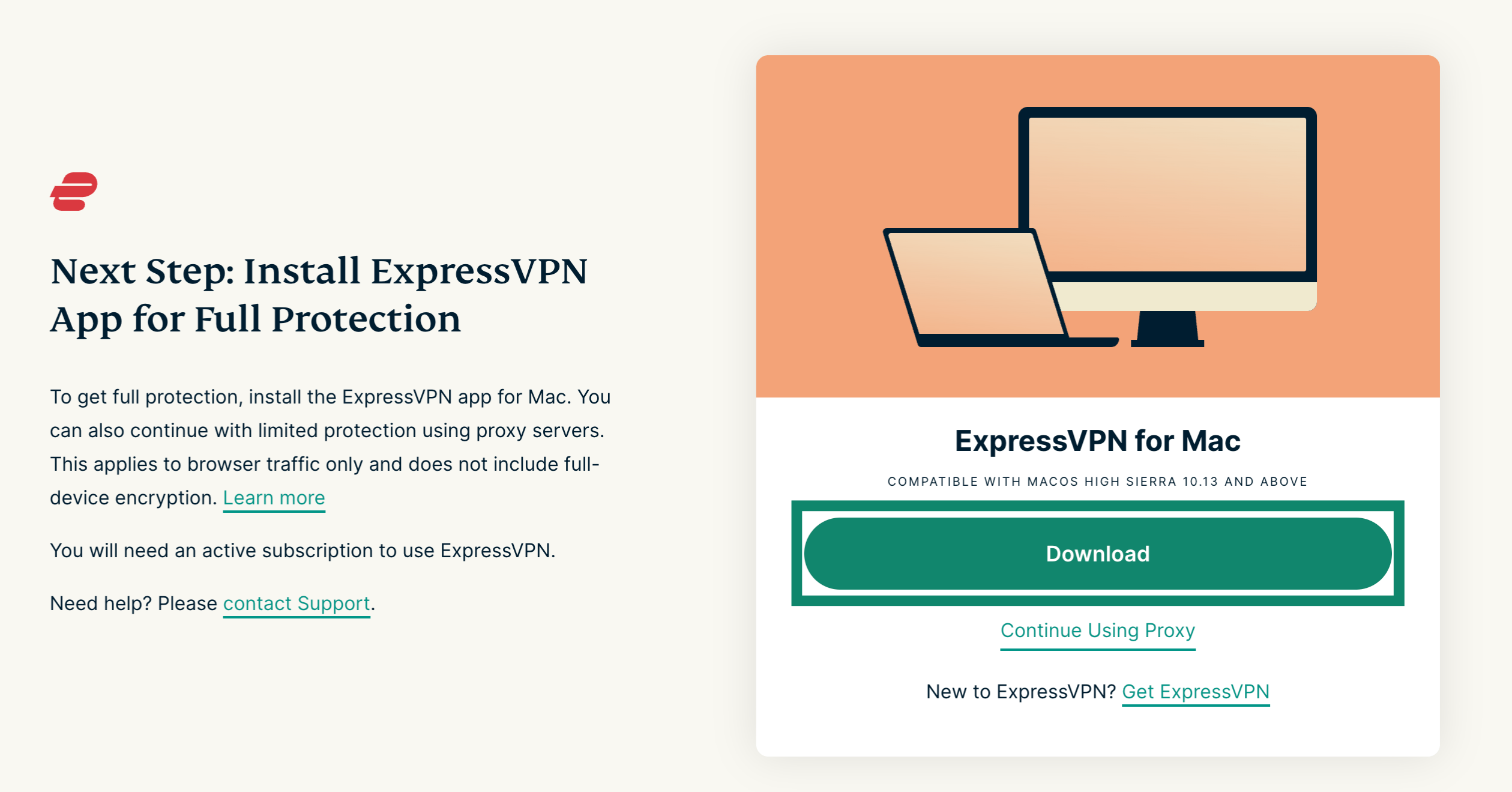
- You will see a message: Install ExpressVPN App for Full Protection. From here, you can decide to either install the desktop app or use the proxy.
- If you wish to download the app (recommended), click Download. If you want to continue using the proxy only, click Continue Using Proxy.


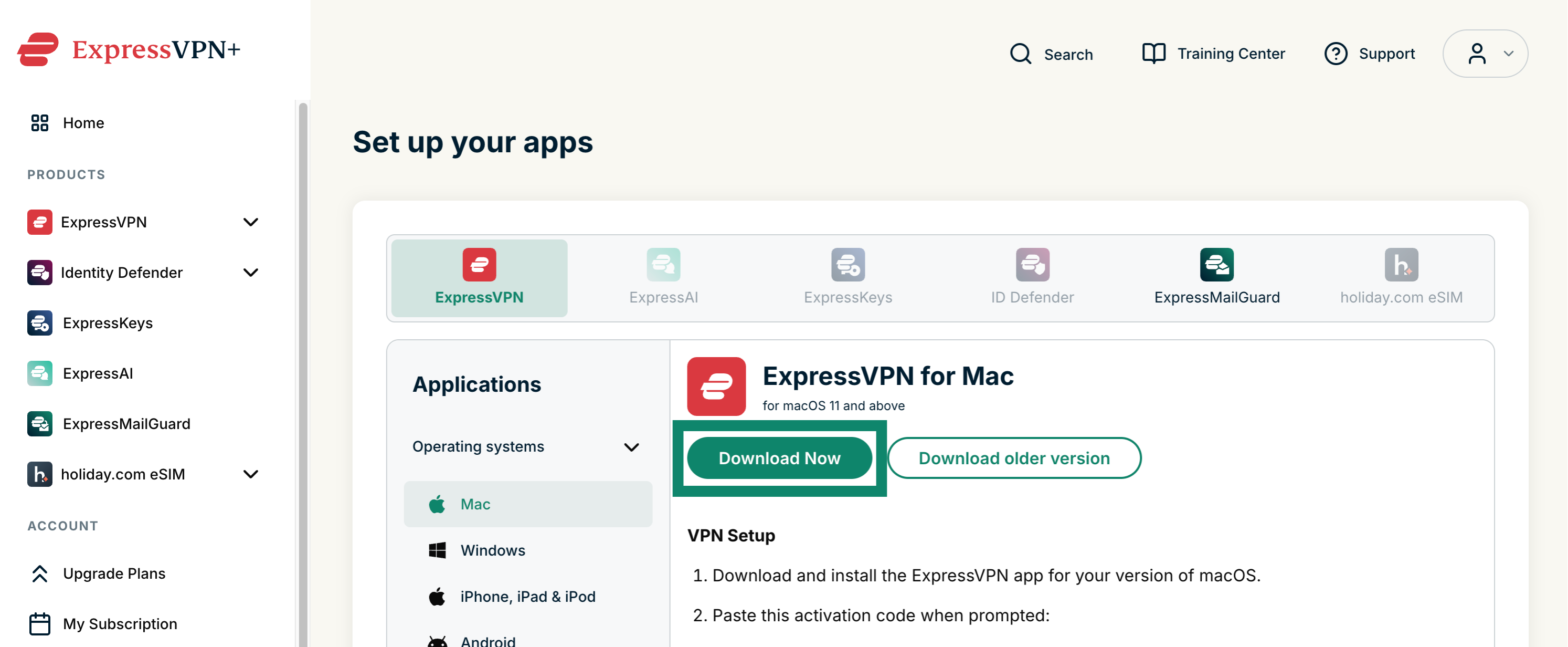
- You might be prompted to sign in to your account, if you’re not already signed in. Then, you’ll be taken to the ExpressVPN product page for your operating system. Click Download Now and install the application.


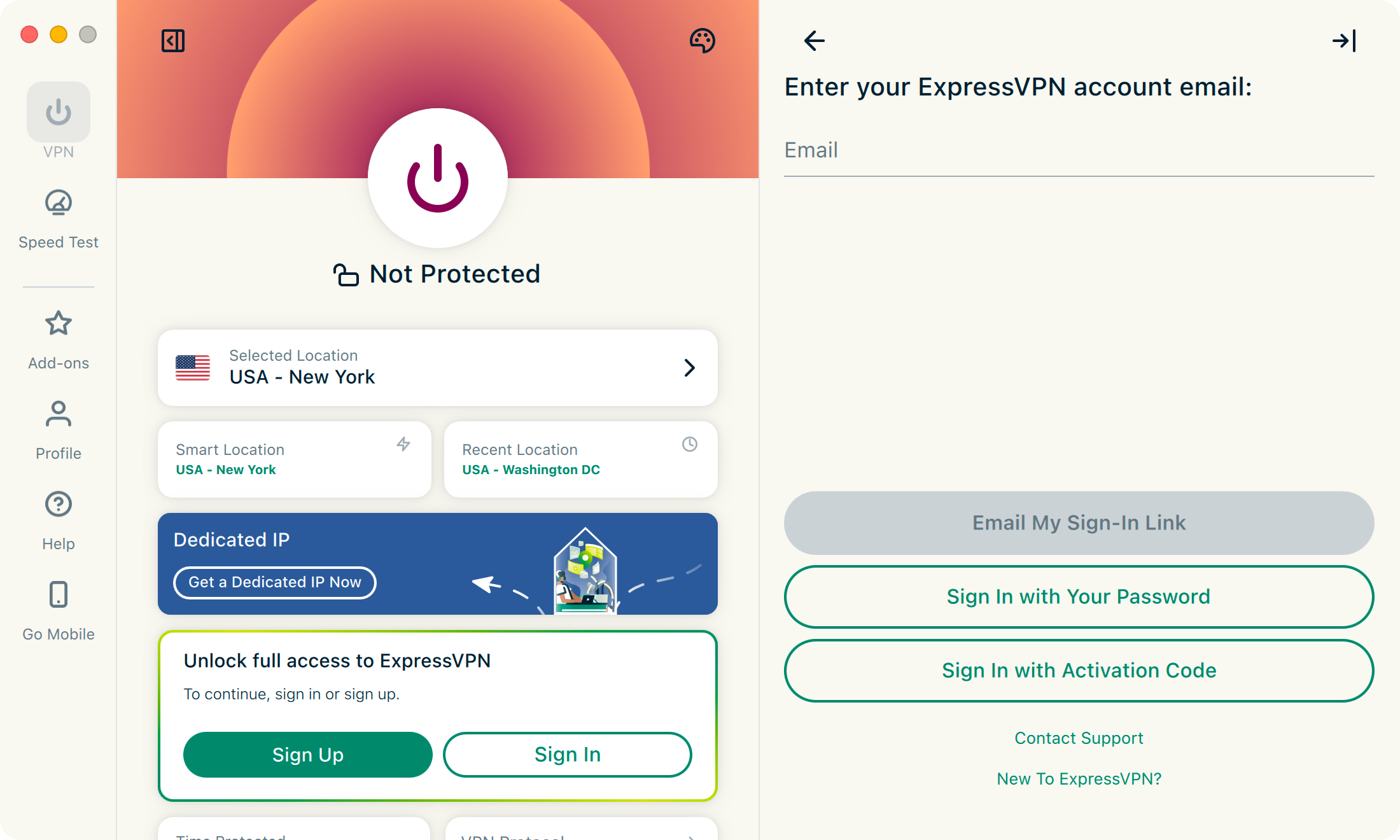
- When you install the application, make sure to log in and activate it. Enter your email address and pick how you’d like to proceed: using a sign-in link, a password, or an activation code. Follow the prompts you’ll see on your screen.

Need help? Contact the ExpressVPN Support Team for immediate assistance.
Features and how to use them
Connect and disconnect from VPN
This affects the internet traffic for all of your apps, not just the traffic that passes through your browser.
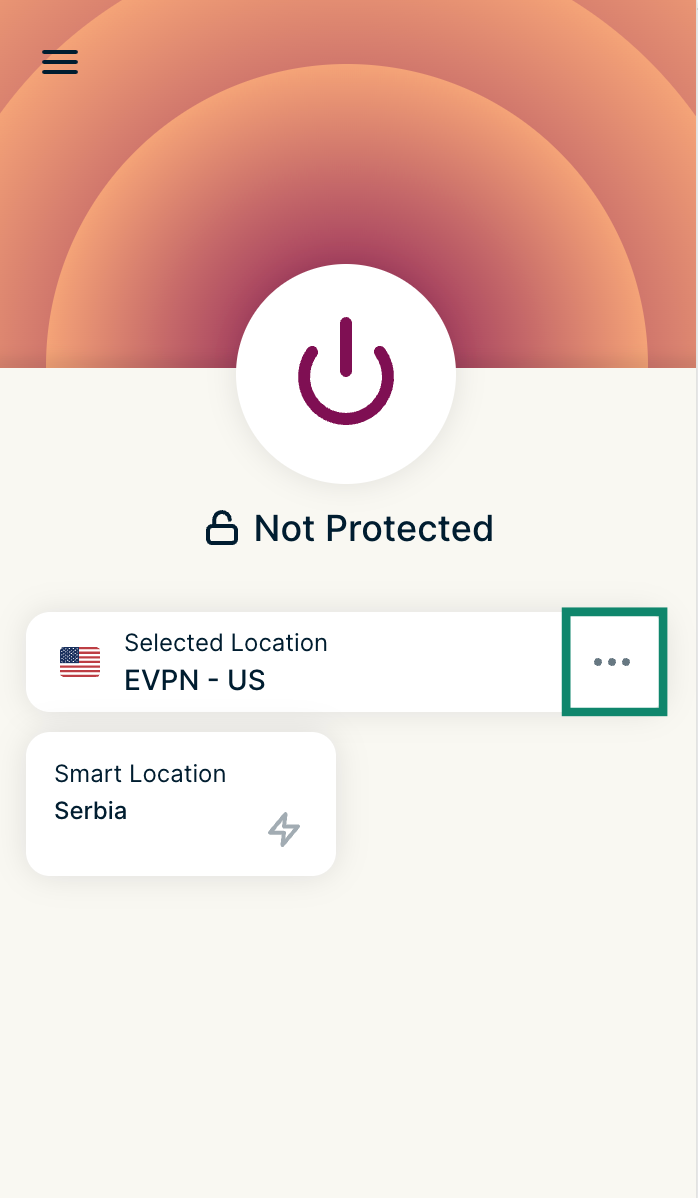
Change VPN server location
To select another VPN location, click  .
.
To connect to the best location recommended for you, click Smart Location.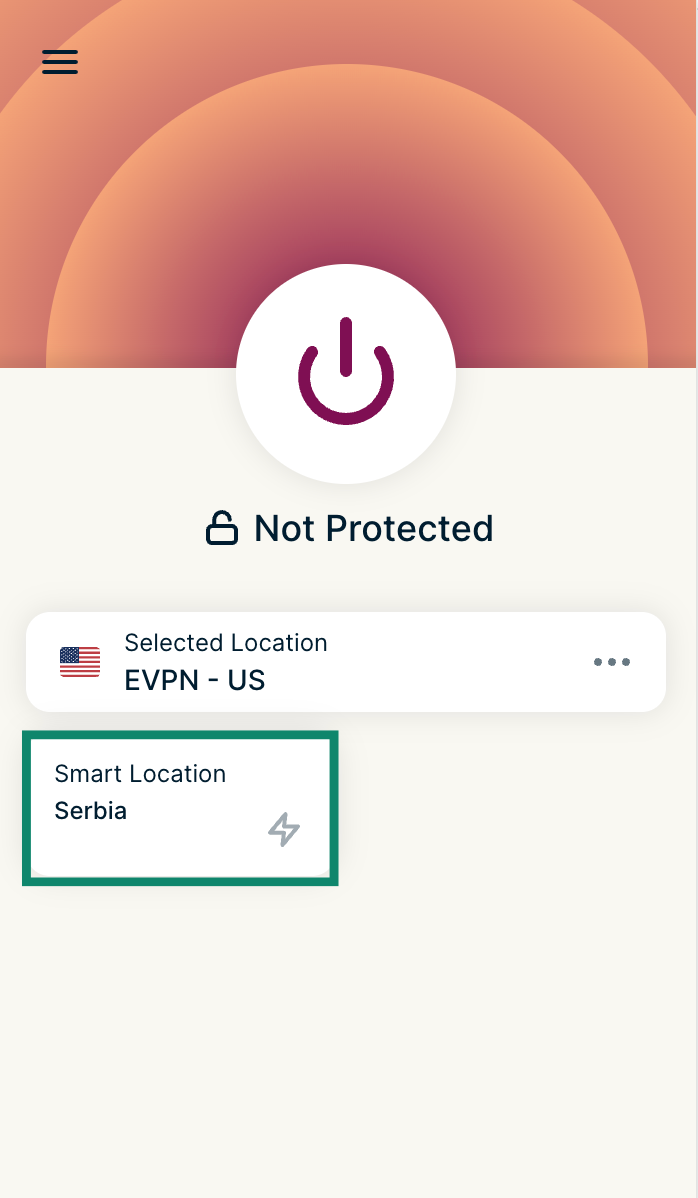
Pick from RECOMMENDED locations within the extension.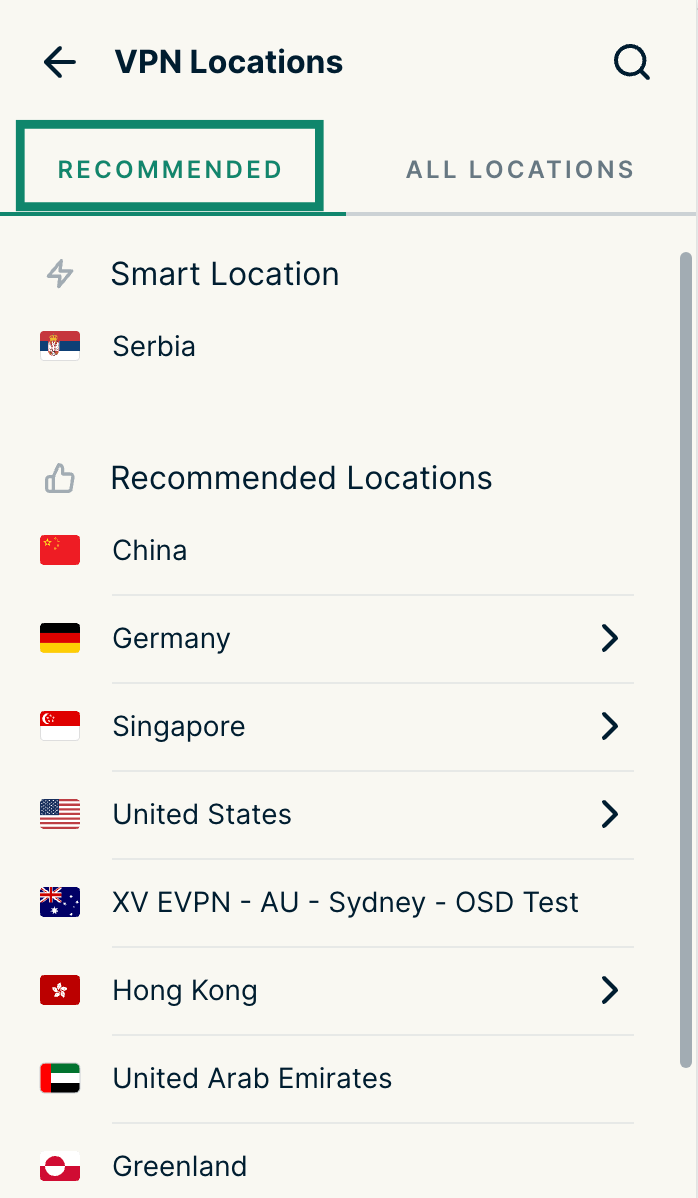
Click ALL LOCATIONS to see the list of all available VPN locations. You can also search for a specific location, review your recently connected locations, and see all of the locations you have marked as favorites in the ExpressVPN app.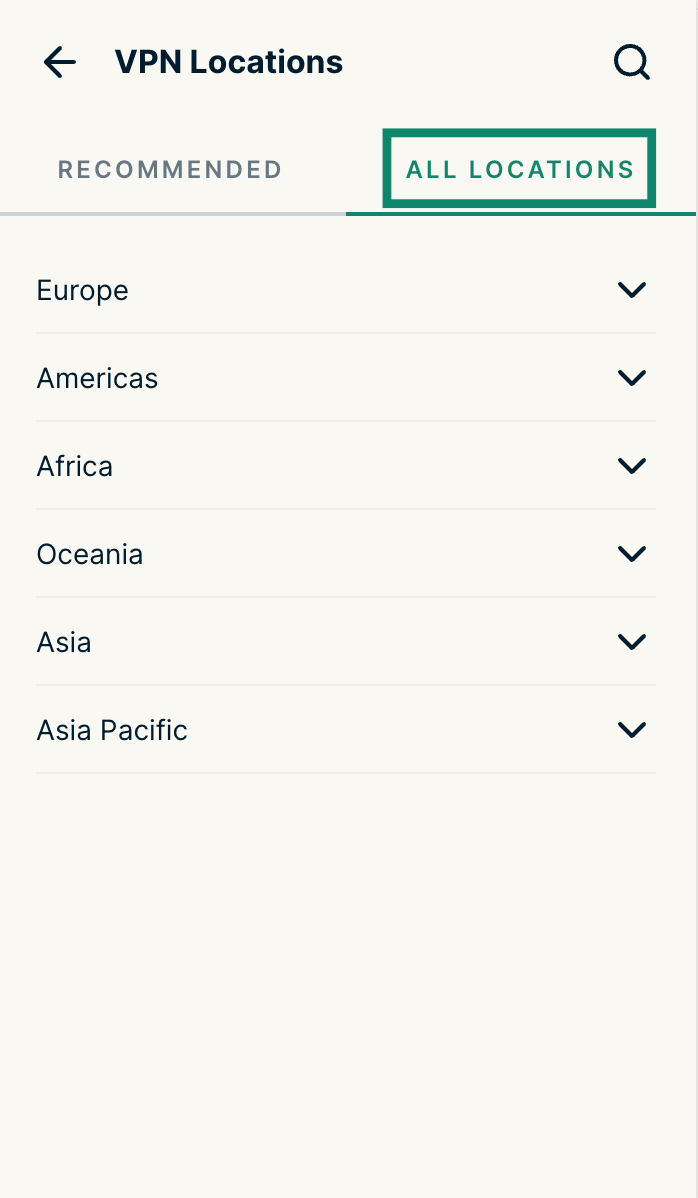
VPN connection status
See your VPN status at a glance in the browser toolbar: orange while connecting, green when connected, and berry for errors.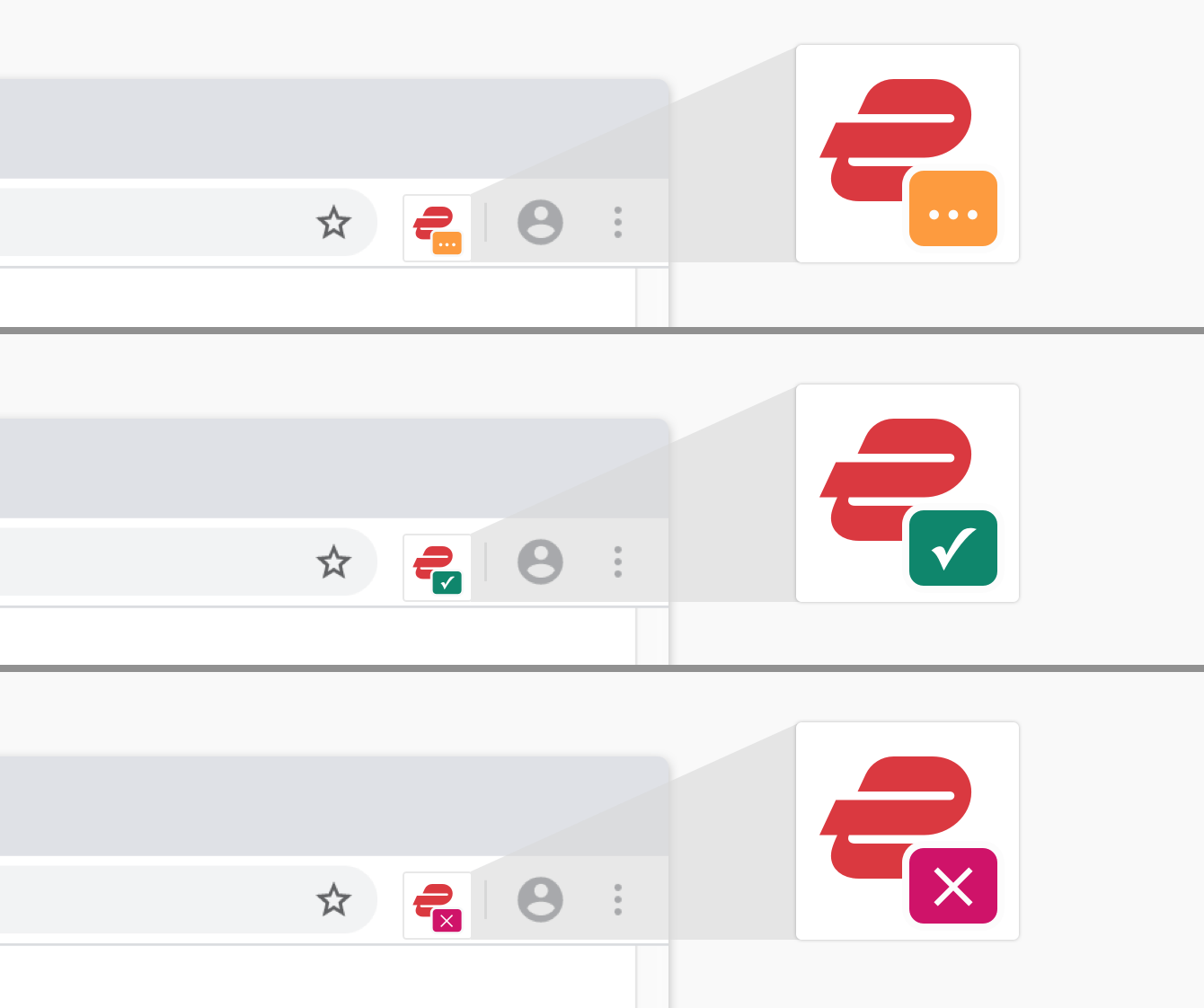
Connect on browser launch
Automatically connect to your last used VPN server location on browser launch. To turn on this feature, click  in the toolbar, click
  , click Settings, and toggle Connect on browser launch on.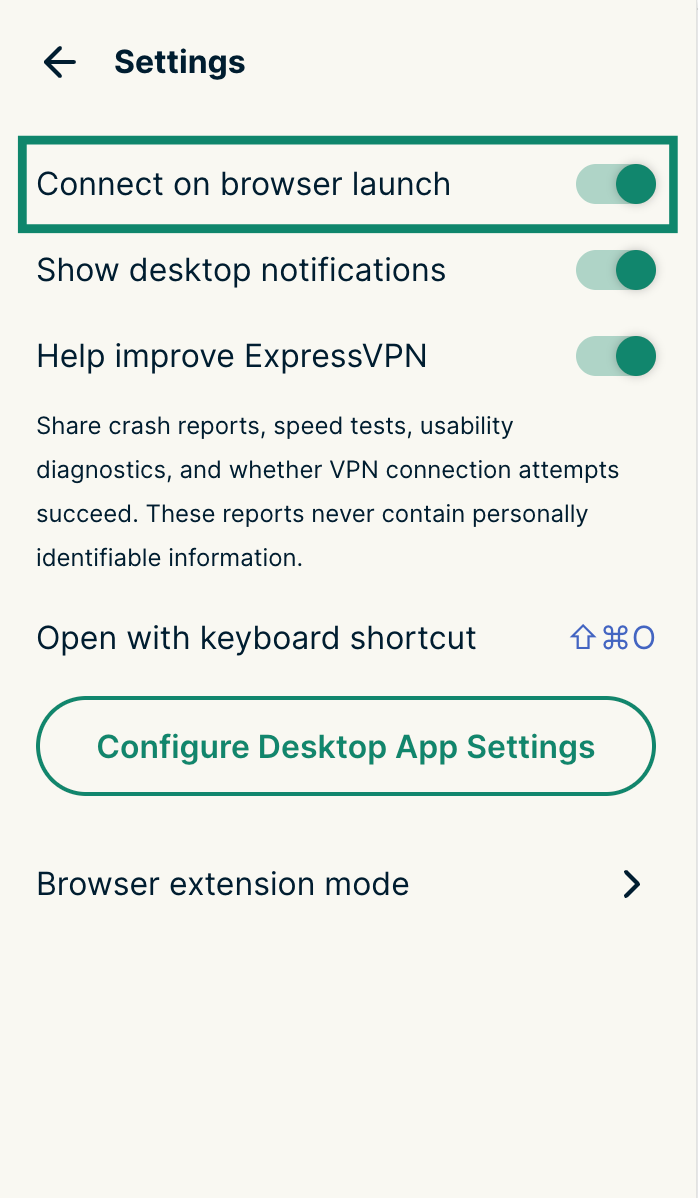
Apply additional privacy and security features
To use these features, click the ExpressVPN icon in the toolbar, click , and click Privacy & Security.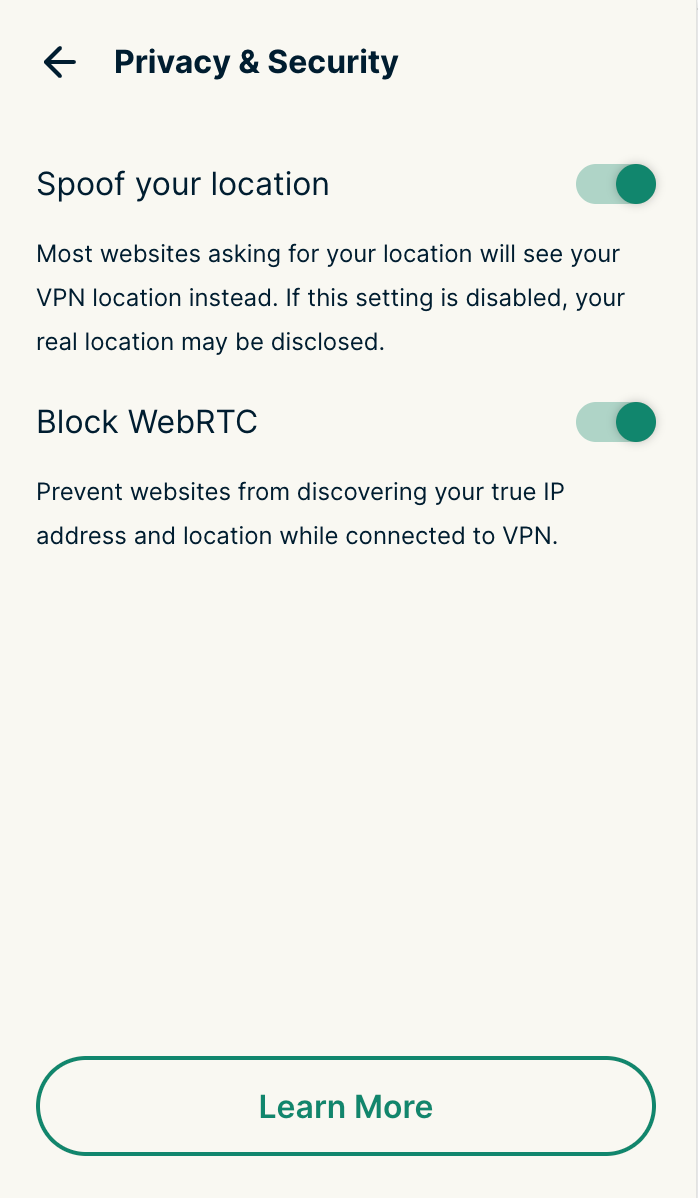
Spoof your location (optional)
This prevents HTML5 geolocation from revealing your physical location on most sites when you are connected to ExpressVPN.
Block WebRTC (optional)
This will obscure your IP address from WebRTC leaks and ensure your browser will use the same network path for media as for normal web traffic.
Smart Routing
Note: Smart Routing is only available in Proxy Mode.
You can use Smart Routing to customize your ExpressVPN extension to fit your browsing habits. These shortcuts will be saved even if you close your browser and quit the extension.
You can find more details on how to use Smart Routing here.
Need help? Contact the ExpressVPN Support Team for immediate assistance.
Using with the ExpressVPN apps
An overview of how the browser extension works alongside the ExpressVPN apps:
Disconnecting from the ExpressVPN app or the browser
If both the ExpressVPN app and a browser with the ExpressVPN extension installed are running and show you are connected to the VPN, disconnecting the VPN from either the ExpressVPN app or the browser will disconnect the VPN in both the ExpressVPN app and the browser.
Quitting the ExpressVPN app
If both the ExpressVPN app and a browser with the ExpressVPN extension installed are running and show you are connected to the VPN, quitting the ExpressVPN app will disconnect the VPN.
If only the ExpressVPN app is running, quitting the ExpressVPN app will disconnect the VPN.
Quitting the browser
If both the ExpressVPN app and a browser with the ExpressVPN extension installed are running and show you are connected to the VPN, quitting the browser will NOT disconnect the VPN.
Need help? Contact the ExpressVPN Support Team for immediate assistance.
How to change browser extension modes
If you have the ExpressVPN desktop app installed, you can swap between Remote Control Mode and Proxy Mode:
- Remote Control Mode: Controls the ExpressVPN desktop app. All internet traffic on your device is encrypted through a VPN tunnel.
- Proxy Mode: Runs independently of the desktop app and provides limited privacy protection. Only your browser traffic is encrypted.
Note: This option is not available on Chromebook and Meta Quest devices, where you can only use the browser extension in Proxy Mode.
To change browser extension mode:
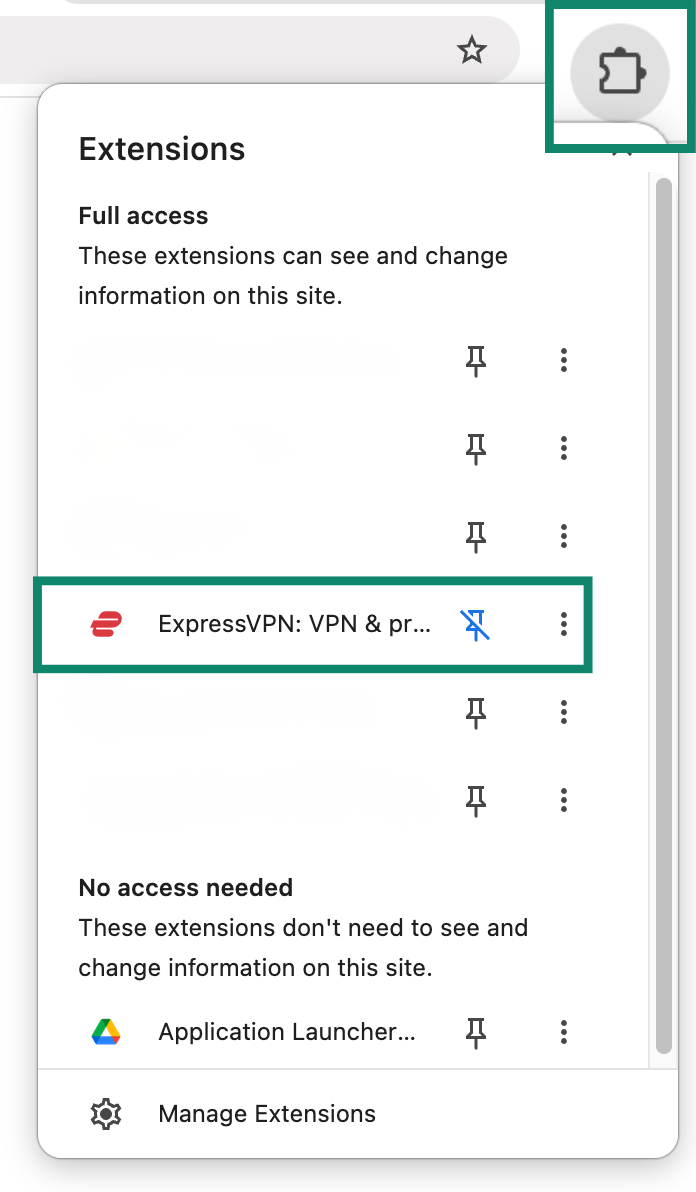
- Open the browser extension by clicking the Extensions button and selecting ExpressVPN.


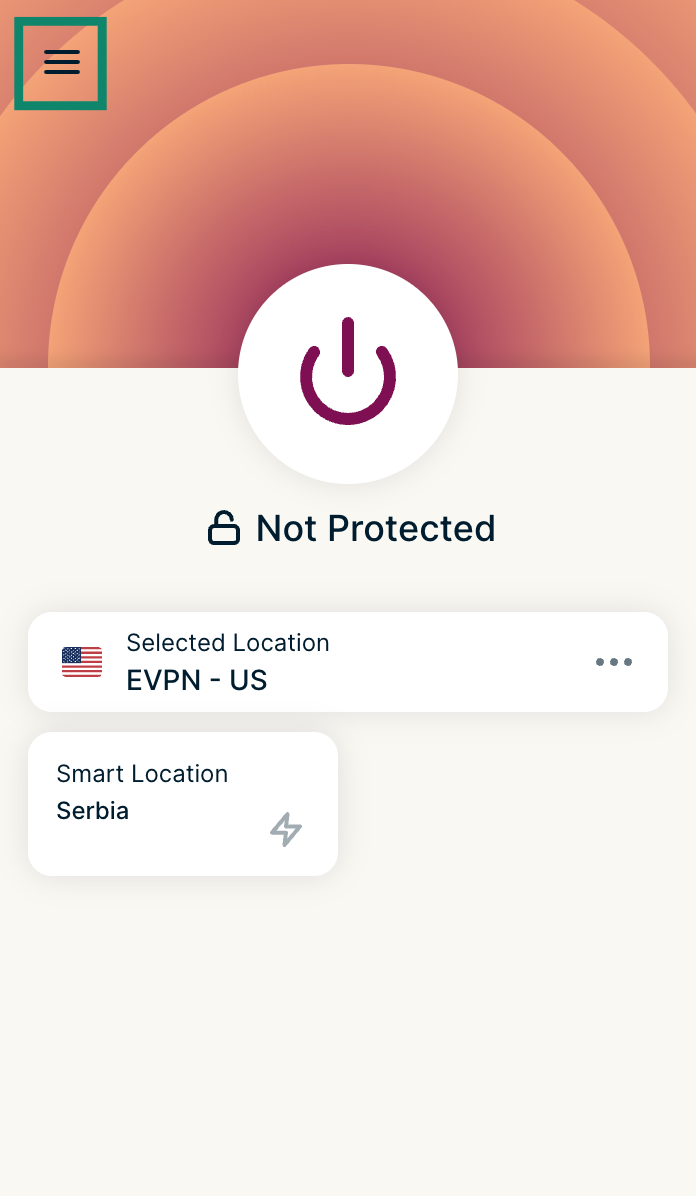
- Click
 .
.

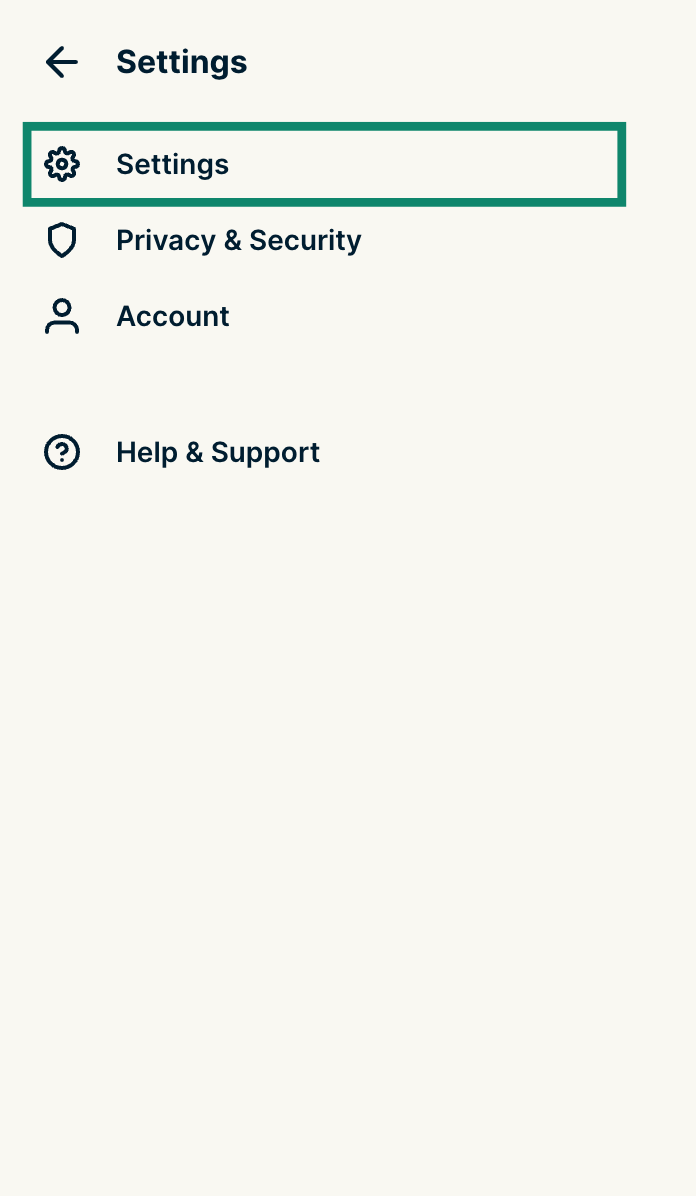
- Click Settings.

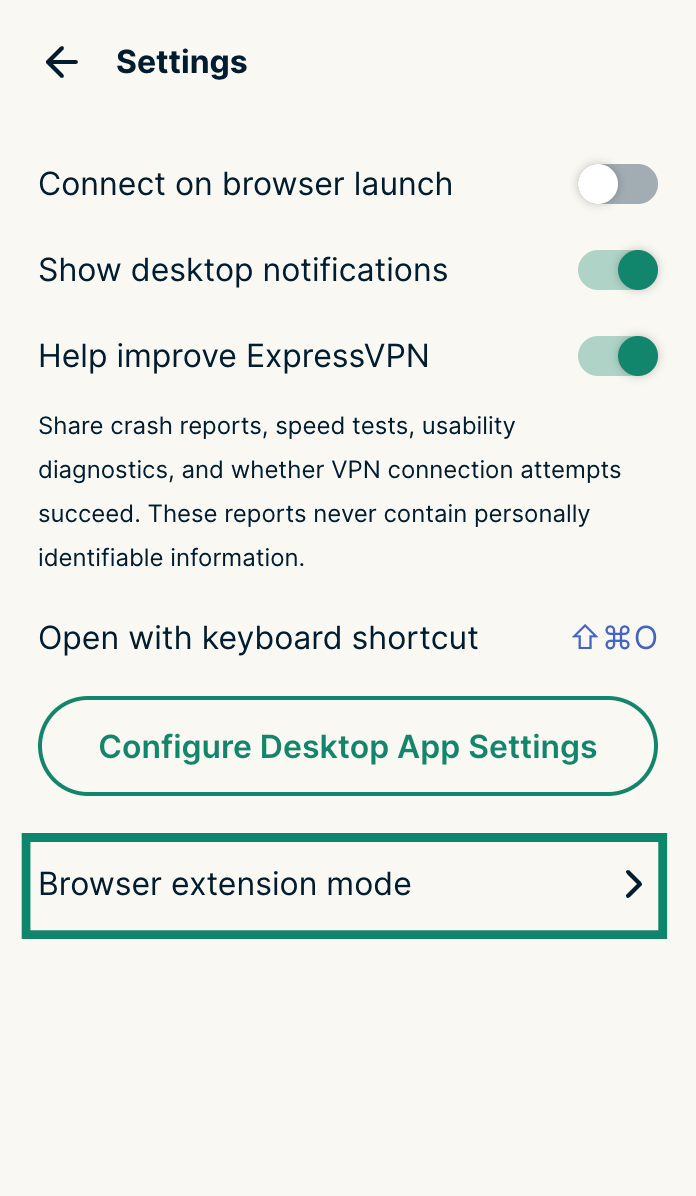
- Click Browser extension mode.

- Select either Remote Control Mode or Proxy Mode.

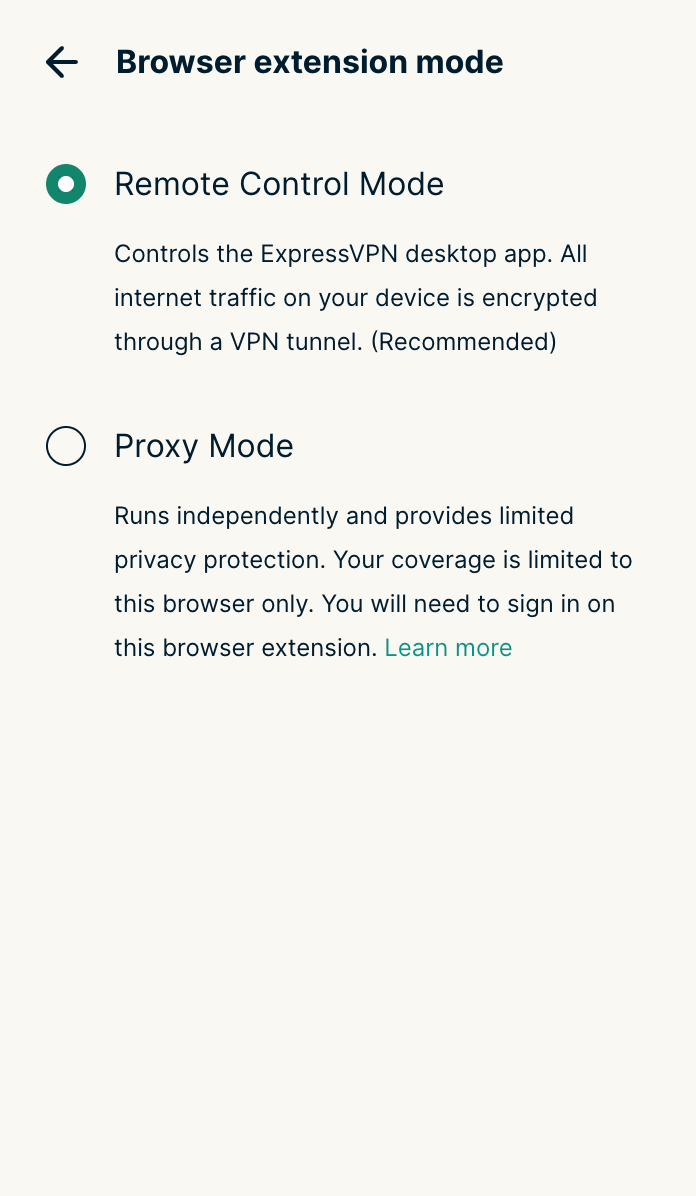
Note: If you select Proxy Mode, you will be prompted to sign in to your ExpressVPN account. Enter your account credentials and click Sign In to continue. Once your account details have been authenticated, reopen the extension to start using Proxy Mode.
Need help? Contact the ExpressVPN Support Team for immediate assistance.
How to use dark mode
A dark color theme is now available for Chrome, Firefox, and Edge.
To use the dark color theme, set your device to use dark mode. The browser extension’s dark mode will be enabled accordingly.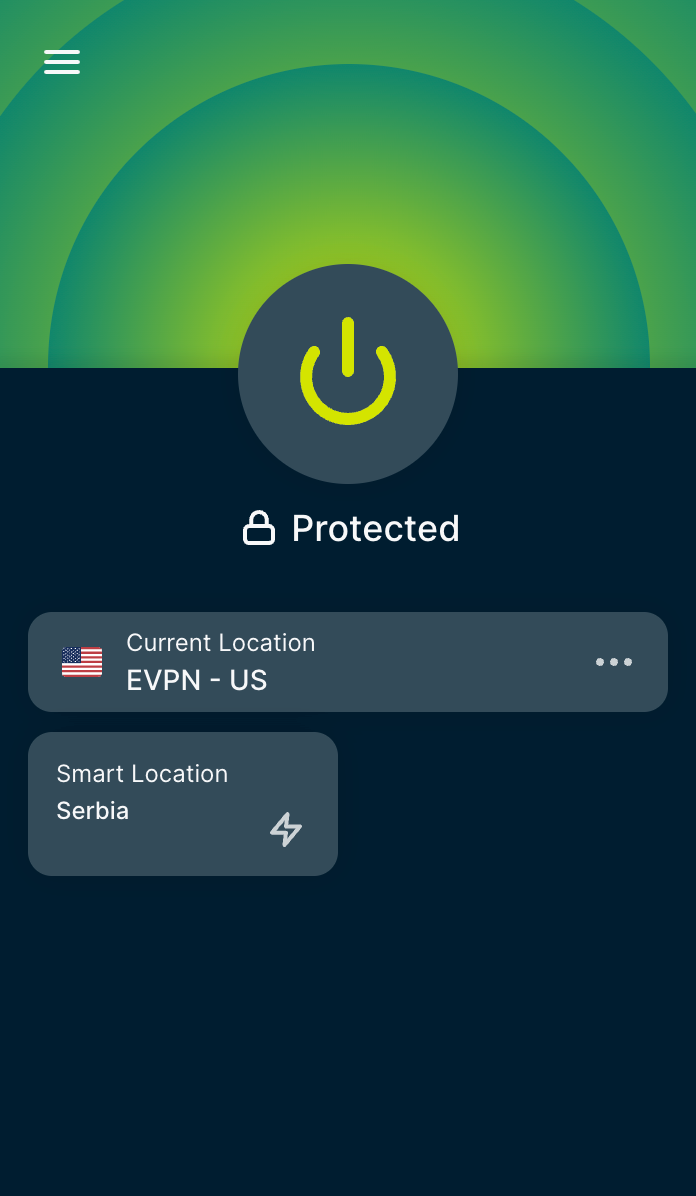
Need help? Contact the ExpressVPN Support Team for immediate assistance.
Errors and fixes
Here are a few common errors you may encounter while using the ExpressVPN browser extension. See below for the error and solution steps:
Connection failed

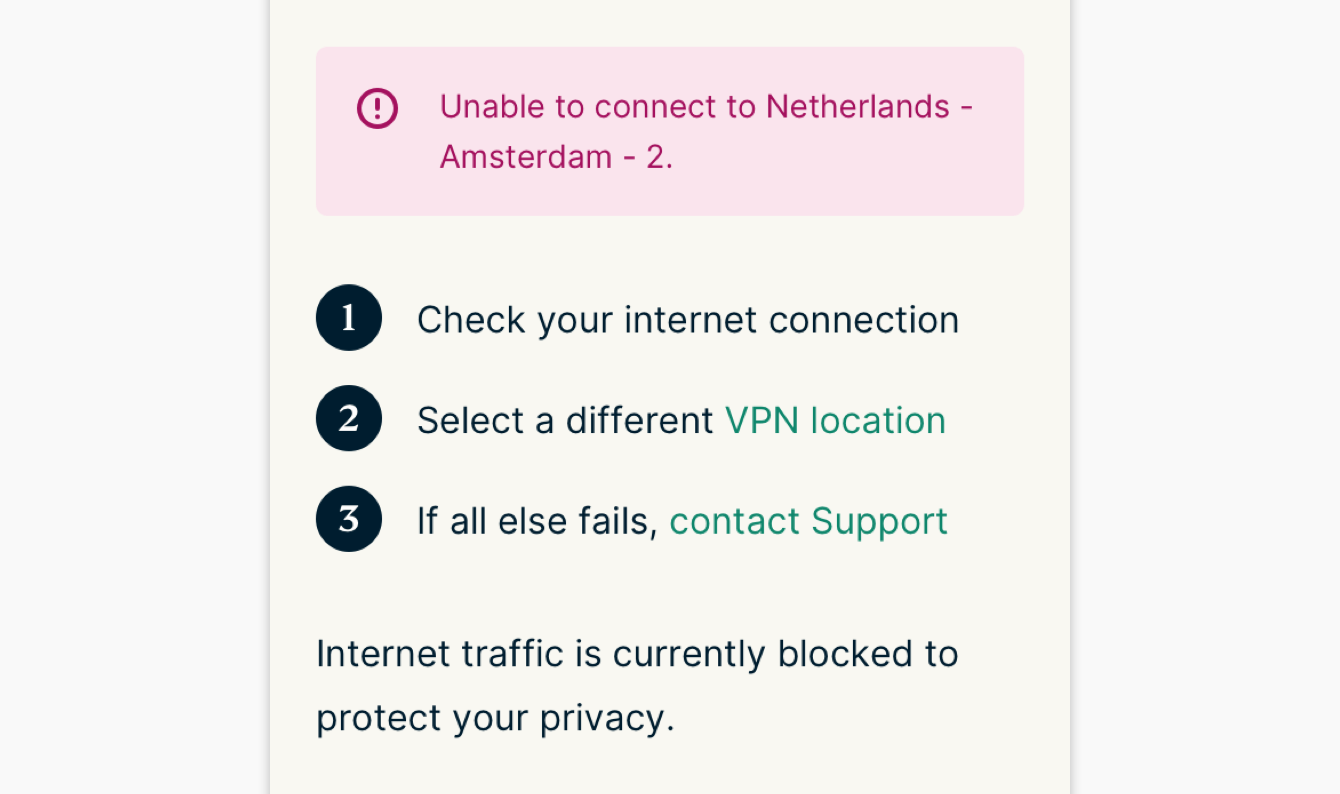
Solution: Make sure your computer is connected to the internet. You can test this by quitting ExpressVPN and trying to access the internet. If you’re unable to connect to the internet, there might be an issue with your internet connection.
If you’re able to access websites without ExpressVPN connected, try connecting to a different VPN server location, as there might be a temporary issue with the server location you first tried.
This extension requires the Mac/Windows/Linux app
If using the browser extension in Remote Control Mode, you must have the ExpressVPN app installed on your device.
Solution: Download and install the latest version of the Mac, Windows, or Linux app. If you still see this message after installing the app on your computer, please contact Support.
Note: You do not need to install the ExpressVPN app to use the browser extension in Proxy Mode.
Need help? Contact the ExpressVPN Support Team for immediate assistance.
How to uninstall
To uninstall, follow the browser-specific steps below:
Chrome
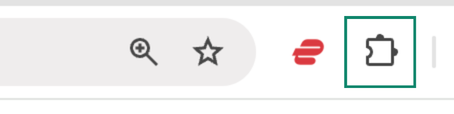
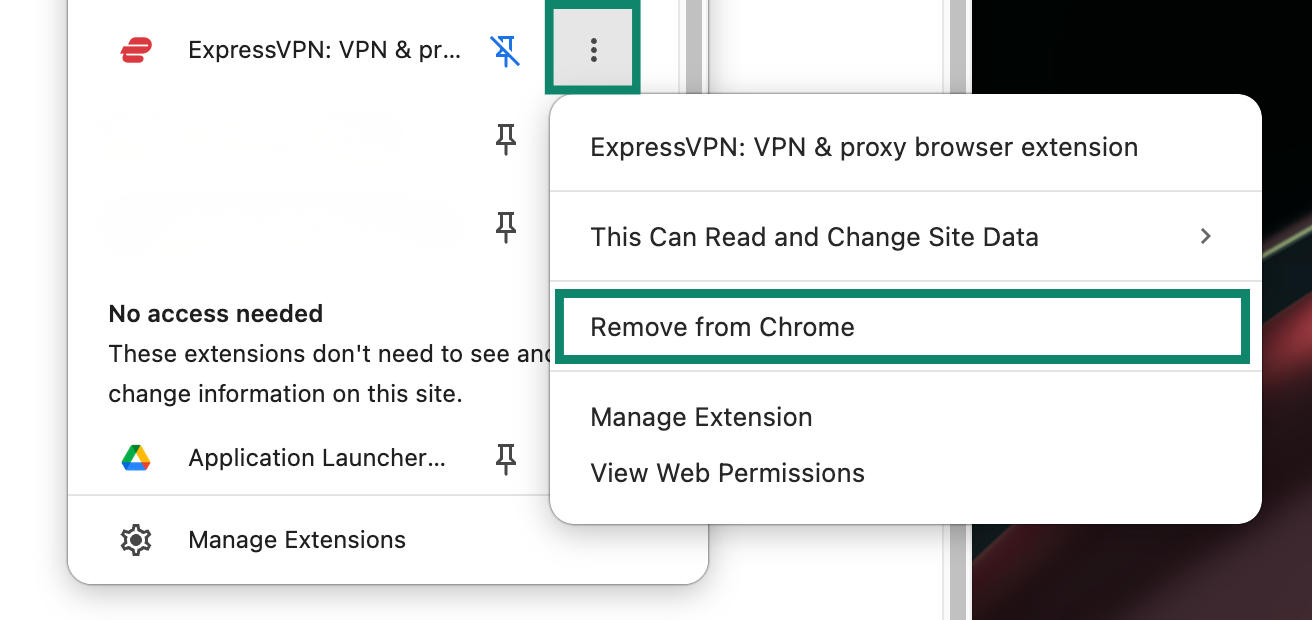
- Click the Extensions button in the top-right corner.


- Select the three-dots button next to ExpressVPN. Then, pick Remove from Chrome.


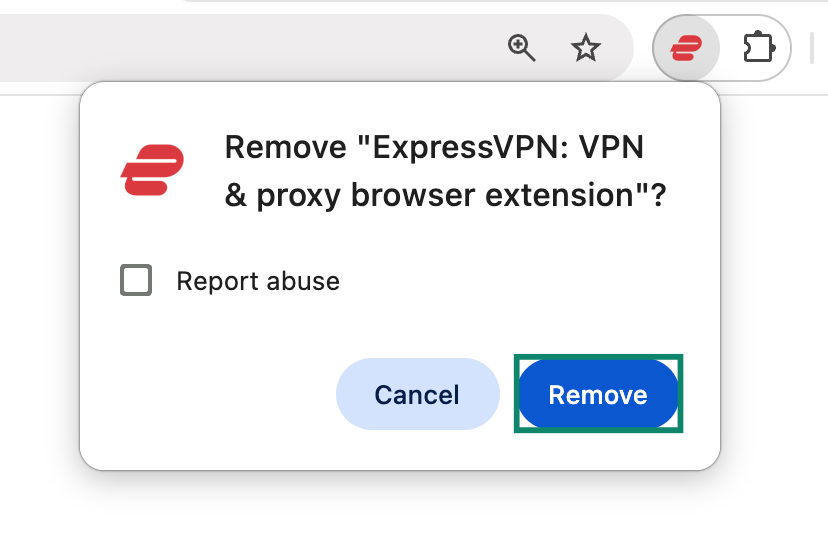
- Confirm by clicking Remove.


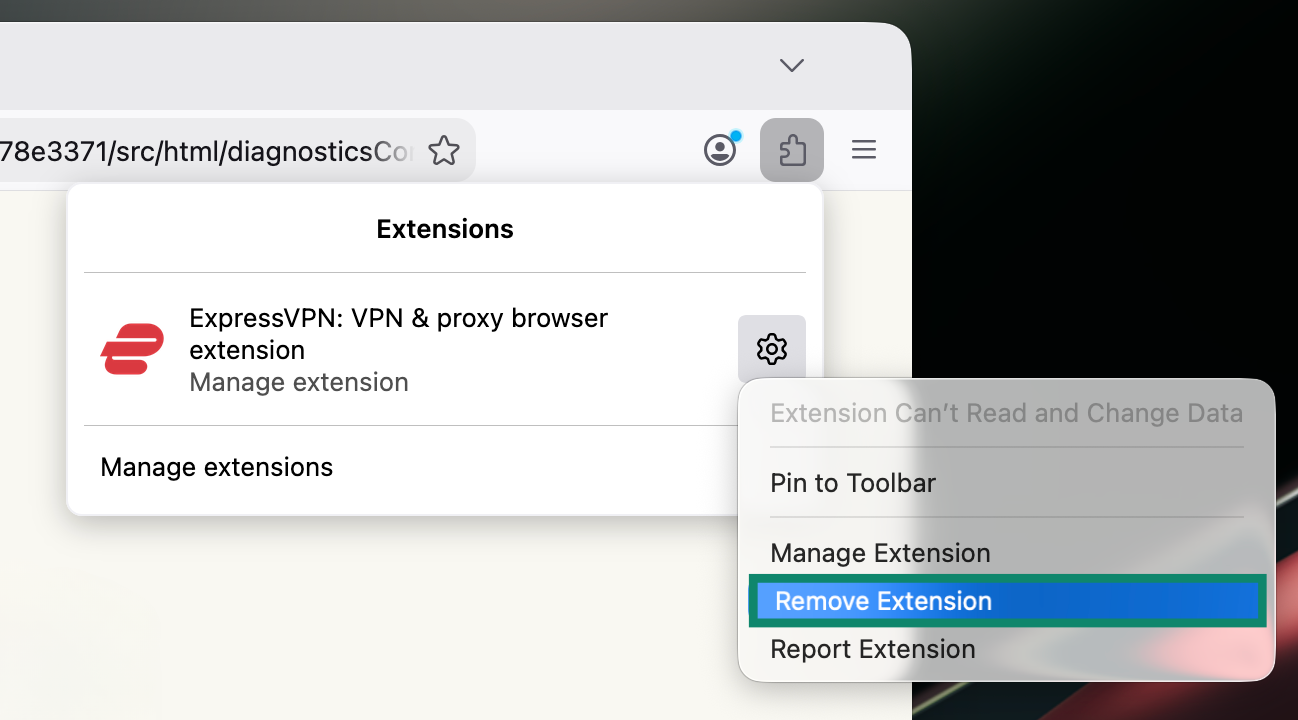
Firefox
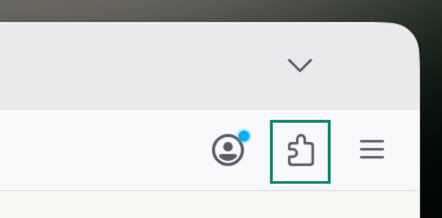
- Click the Extensions button in the top-right corner.


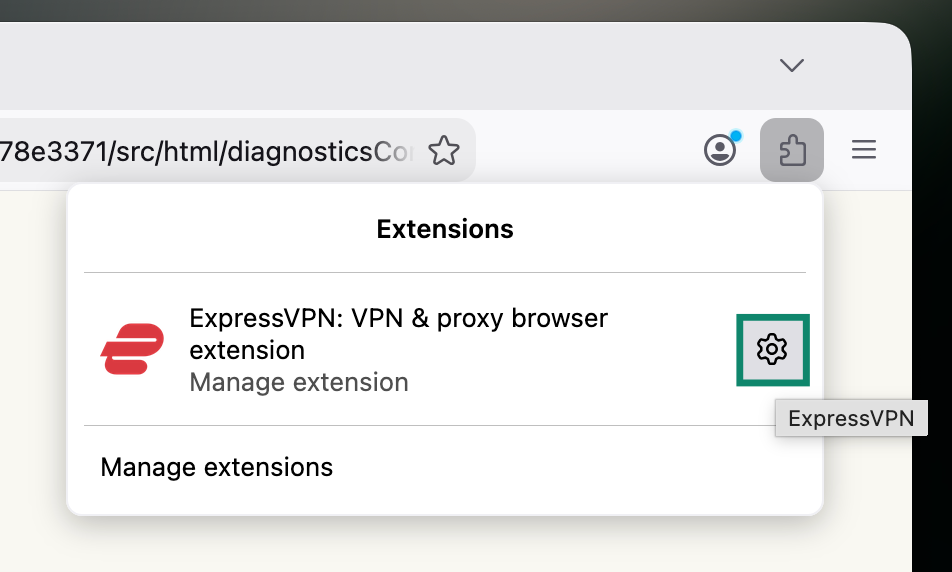
- Select the Gear (Settings) icon next to ExpressVPN.


- Pick Remove Extension.


- Finalize by clicking Remove.


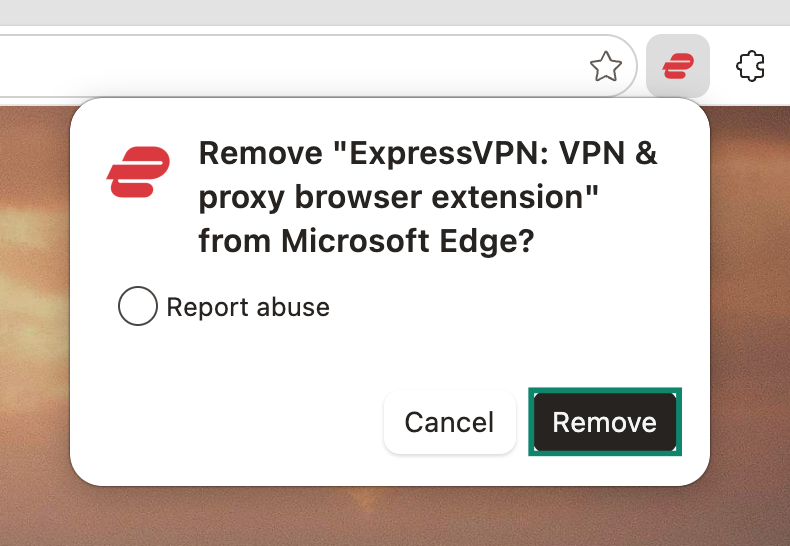
Edge
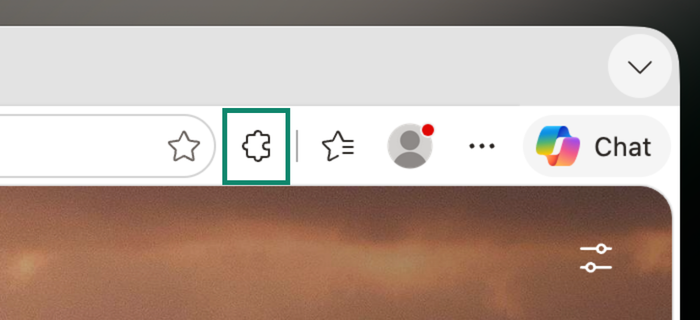
- Click the Extensions button in the top-right corner.


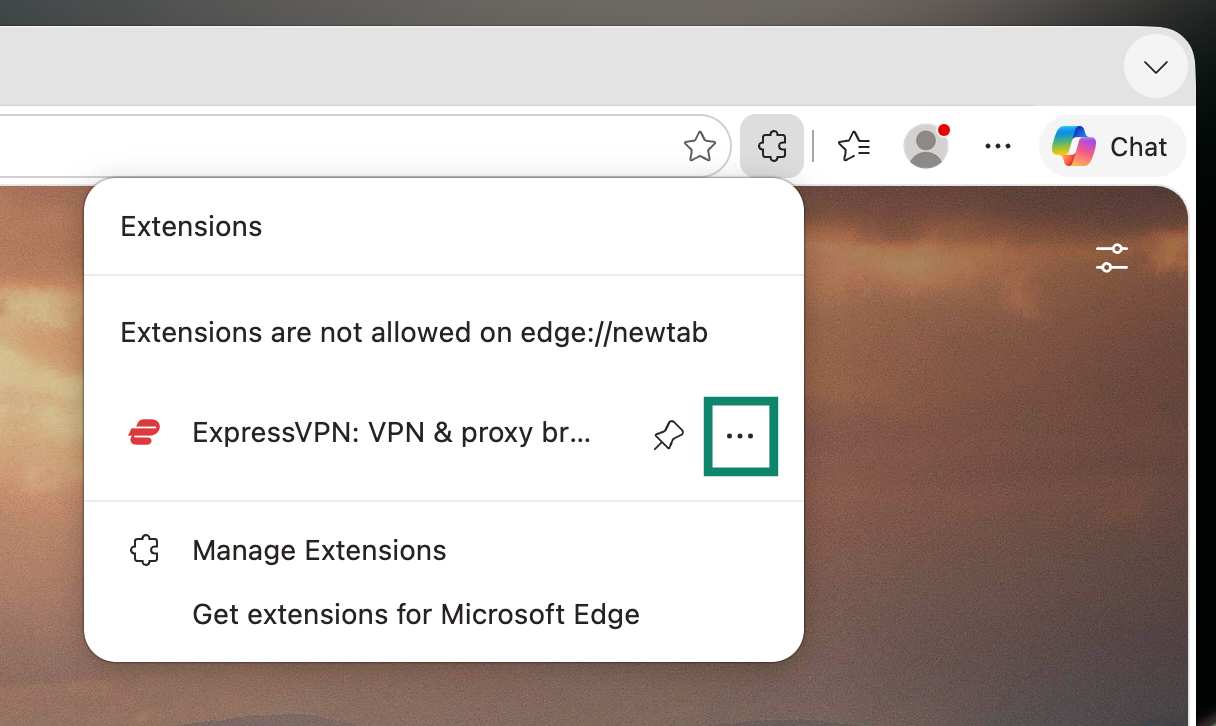
- Select the three-dots button next to ExpressVPN.


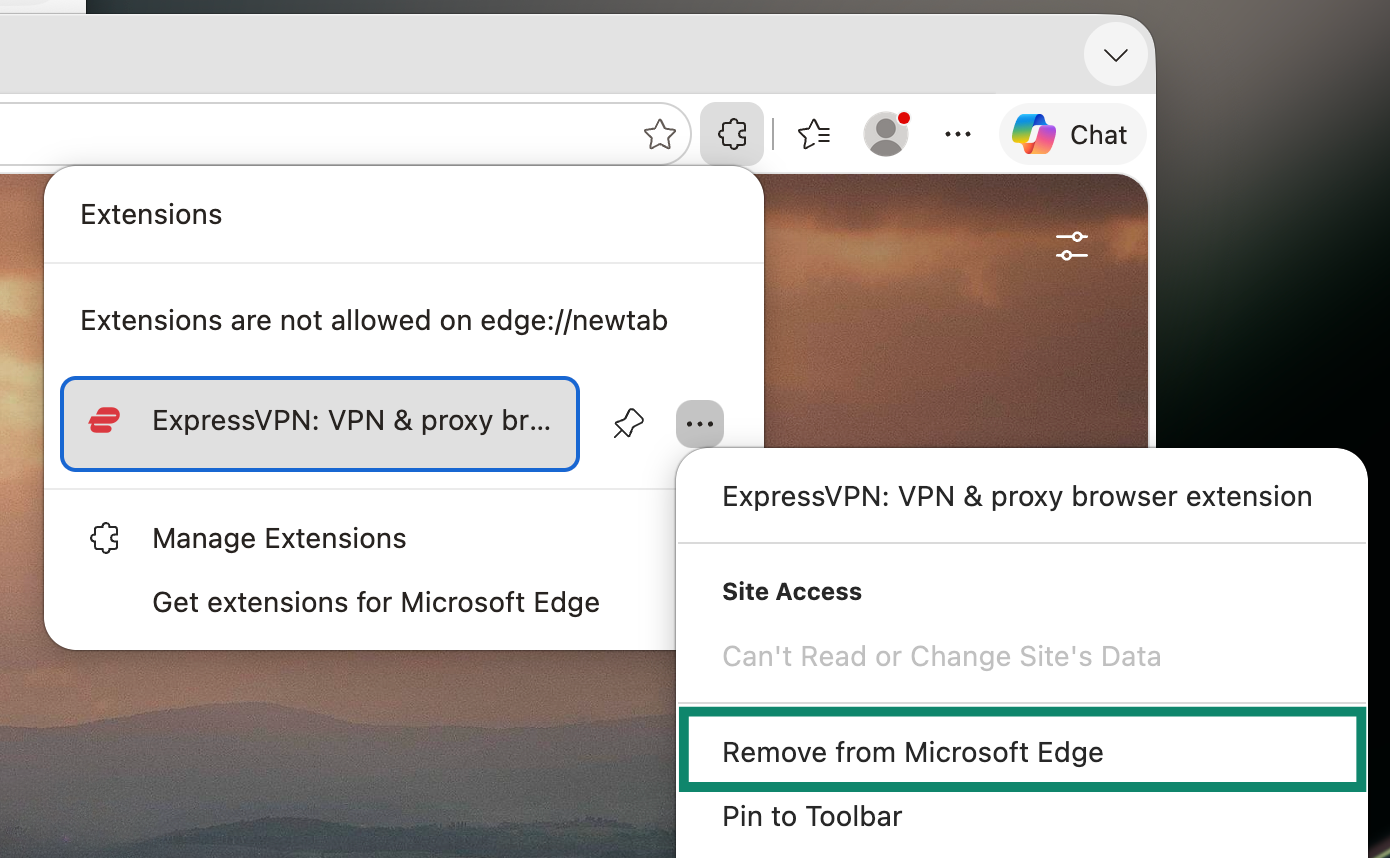
- Pick Remove from Microsoft Edge.


- Finalize by clicking Remove.


Need help? Contact the ExpressVPN Support Team for immediate assistance.