What is cache, and should you clear it


Clearing the browser or app cache is a common troubleshooting step when websites load slowly, look wrong, or don’t update properly. It can help in some cases, but it isn’t always necessary.
Cache exists in many places (browsers, apps, operating systems, networks, and hardware). In this article, we'll focus mainly on browser and app caches: how they work, when clearing them can help, and what changes afterward.
What is cache, and what does it do?
A cache is a storage area that keeps copies of recently used data so it can be reused quickly. In the browser cache, the browser stores website resources it has already downloaded (or checked as still current), so repeat visits can load faster and use less data. In an app cache, an app stores temporary files and resources it often uses so screens and content can load more quickly.
For example, when someone revisits a webpage, the browser may load certain files from the cache (or quickly check whether the cached version is still up to date) instead of fetching everything from the website again. Similarly, an app can reuse recently loaded interface resources instead of rebuilding or re-fetching them each time.
Cached data often includes files that don’t change frequently or are reused often. In browser and app caches, common examples include:
- App assets: Interface elements and background resources.
- Web images and media: Photos, logos, icons, and video thumbnails.
- Previously fetched content: Some responses or temporary files from earlier pages or app sessions.
- Site files: Style sheets (CSS), JavaScript, and sometimes HTML (depending on how a site is configured).
How cache works
A cache works by keeping reusable copies of data closer to where it’s needed, so the system doesn’t have to fetch the same content from the original source every time. In web browsing, the browser's built-in cache can store website resources (responses and files) so they can be reused on later visits. Similar caching also happens in apps, operating systems, and networks.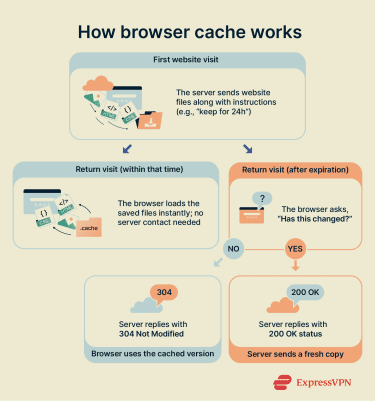
When the system requests data, the cache checks whether it already holds a usable copy. If a copy is available, the cache returns it immediately. This is called a cache hit.
If no copy exists or the stored version is outdated, the system retrieves a fresh version from the original server, database, or memory. It may then store the new copy in the cache for future use. This is called a cache miss.
When cache updates or expires
Cache storage is limited, so it can’t keep everything indefinitely. Many browsers, apps, and operating systems manage cache updates and removal in the background. Behind the scenes, systems follow rules to decide when to keep, refresh, or remove stored content.
For browser caching, one common rule is a cache lifetime, often described as a time to live (TTL). It sets how long cached data is considered valid (e.g., 15 minutes, 1 month, or 90 days). After that time passes, the cached copy becomes stale, and the browser may fetch an updated version. Cached items may also be evicted later to free up storage.
Another method is revalidation. Instead of relying only on a timer, the cache checks whether the original content has changed and updates it if necessary.
In browsers and apps, cache can also be cleared manually. Deleting cached files removes stored copies from the device, forcing the browser or app to retrieve fresh versions when accessing websites or content again.
Common types of cache
Multiple caches can exist simultaneously. Some are stored locally on a device; others work at the operating system level or on external servers.
The most common types of cache include:
- Browser cache: Stored inside a web browser on a device. It keeps website files like images and style sheets so pages can reload quickly. For example, a site banner may load instantly on a return visit because the browser already saved it locally.
- App cache: Stores temporary files used by mobile or desktop applications, such as interface elements or recently viewed content. Deleting an app’s cache removes these temporary files and usually doesn't affect personal data or account settings.
- Operating system cache: The operating system uses available RAM to cache recently accessed disk (and sometimes network) data, reducing repeated hard drive/SSD access. For example, reopening a document may load faster because the operating system kept parts of it in memory.
- CPU cache: Built into the processor, CPU cache typically uses static random-access memory (SRAM). It stores instructions and data currently in use so they can be accessed quickly. CPU caches typically have levels (L1, L2, and L3). L1 is the smallest and fastest, closest to the processor cores. L2 and L3 store more data but are generally slower than L1.
- Server cache: Stored on a web or application server and keeps pre-generated responses so the server doesn’t rebuild the same content repeatedly. This improves response times for high-traffic websites. For example, a popular homepage may be served from cache instead of being generated for every visitor.
- Content Delivery Network (CDN) cache: Stores website content on servers around the world. When users request content, the CDN serves it from a nearby location. For example, a video may load from a nearby regional server instead of one in another country.
- Domain Name System (DNS) cache: Stores recent domain name lookups. When a device translates a domain name into an IP address, it temporarily saves that result, allowing future requests for the same domain to resolve more quickly. DNS caching can occur in browsers, operating systems, routers, or internet service providers (ISPs).
- Key–value (KV) cache for large language models (LLMs): Used during transformer text generation to store attention key and value tensors from earlier tokens so they don’t need to be recomputed at every step, improving inference speed at the cost of additional memory.
- Compiler, runtime, bytecode, and just-in-time (JIT) compilation caches: Store intermediate or compiled representations (for example, cached bytecode or compiled code) so repeated runs can skip some parsing and compilation work and start faster.
- Least recently used (LRU) cache in programming: An eviction approach that keeps recently accessed entries and discards older entries first; commonly used for memoization (caching function results by input).
Note: When guides suggest clearing cache, they usually mean browser or app cache.
Why is cache important?
Modern computers, smartphones, browsers, and major websites rely on multiple layers of caching to operate efficiently. The effects are usually seen in:
Faster loading and performance
For apps and browsers, caching speeds things up because reading files from local storage or memory is often faster than downloading the same data again from a remote server.
This difference is noticeable on image-heavy websites, such as online stores with product photos, or web apps like email and dashboards that reuse the same layout and interface elements.
At a deeper level, caching can also help devices run more smoothly by giving processors faster access to frequently used data than repeatedly fetching it from main memory or storage.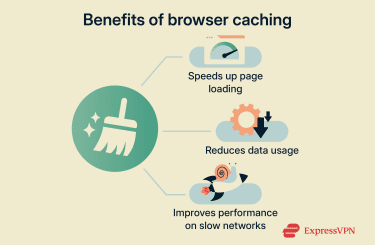
Less data usage and fewer requests
Caching can reduce how often information needs to travel across the network. In browsers and apps, reusing stored files lowers bandwidth usage and limits repeated downloads. On the service side, server and CDN caches can also reduce repeated work and repeated network transfers by serving content from cache.
For limited data plans, this can mean using less mobile data. For websites, fewer repeated requests can reduce server load and help services stay stable during high-traffic periods.
Better experience on slow networks
On slow or unstable connections, each request to a remote server adds delay. In browser and app use, cached files reduce how often a device depends on the network for reusable content, which can make repeat visits feel smoother even if connection speeds drop. In some cases, parts of previously accessed content may still display during short connection drops, depending on what was cached and how the site/app is configured.
Cache drawbacks and risks
Caching can improve performance, but it also has potential drawbacks. The most common downsides include outdated content, storage buildup, and some privacy or security considerations. The user-visible issues below most often involve browser and app caches, while some security issues occur in network or server caches.
Outdated content and display issues
Because caching keeps copies separate from the original source, data can sometimes fall out of sync. Cached files can then become outdated.
If a website updates its information or visual design, a stored copy may not match the latest version if the cache is not refreshed quickly enough. This can result in outdated information (such as older product prices) or pages displaying incorrectly.
However, modern web practices, such as HTTP cache-control rules and cache busting for changed files, can reduce the likelihood of this when configured correctly by prompting browsers to fetch updated versions.
Storage space buildup
While individual files are small, multiple app and website caches can add up, increase storage use, and crowd out other apps or personal files. At the system level, operating systems may also use available RAM to cache frequently accessed data to improve performance, which is typically managed automatically.
Most systems manage cache to limit buildup, but heavy browsing sessions or limited storage capacity can sometimes outpace this process.
Privacy and security considerations
Cached content is stored locally and can include previously viewed page resources. However, cache is not designed as a user-facing data store, and its files are typically not easy to browse without specialized tools.
For most everyday use, cache isn’t typically the primary tracking mechanism or privacy risk compared with cookies or third-party tracking scripts. Browsers generally store saved passwords separately from the cache, and sensitive data isn’t intended to be stored there, especially when websites use caching directives like "Cache-Control: no-store" to prevent storage.
However, some security risks exist at the network or server level, where caching also occurs. One example is DNS cache poisoning, which targets DNS resolvers or other infrastructure caches. In these attacks, an attacker attempts to seed incorrect DNS records so requests for a legitimate domain resolve to the wrong IP address. This can lead to phishing pages, credential theft, or the distribution of malware.
Learn more: Read our guides on cross-site tracking and cookieless tracking.
Cache vs. cookies vs. browsing history
Browser settings often group history, cached files, and cookies together when discussing "browsing data." Storage space discussions may also mention disk storage and RAM, but they’re different: disk storage is long-term, while RAM is short-term memory used for active tasks.
However, each one stores data for a different purpose and delivers a different benefit. Here are the main differences between cache, cookies, browsing history, disk storage, and RAM.
| Operating level | Stored data | Function | |
| Cache | Browser, app, operating system, web servers, networks, hardware (CPU) | Copies of frequently accessed resources (e.g., images, scripts, media, and cached responses) | Faster data access and fewer full downloads/requests in many cases |
| Cookies | Browser | Session identifiers, site preferences, and (sometimes) tracking data | Session management, personalization, and tracking |
| Browsing history | Browser | Visited URLs | Records browsing activity (e.g., History page and address bar suggestions) |
| Disk storage | Device SSDs/HDDs | Apps, documents, and system files | Long-term storage |
| RAM | System memory | Data and operating system instructions currently in use | Fast access for active tasks; contents are lost when power is off |
They also vary in retention. RAM is temporary. Cache and cookies may be kept for a while but can be cleared, evicted, or expire based on settings and rules. History and disk storage generally remain until cleared or deleted.
Learn more: Find out how to turn off browsing history and delete incognito history.
What does it mean to clear cache?
Clearing the cache means deleting the files a browser, app, or operating system has saved to speed things up. This resets cached copies, but it doesn’t usually change how the device or apps function overall.
What happens after clearing cache
Once cached data is removed, the device may need to re-fetch (or re-check) those files the next time a website or app is opened. This can have several short-term effects:
- Websites and apps may load more slowly at first because saved files are gone.
- If the cached data was out of sync, pages or apps may show updated content.
- Minor glitches, such as display or formatting issues, may be resolved.
- Storage space may be freed up, especially when clearing cache for multiple apps.
Over time, performance typically returns to normal as new cached copies are created.
What clearing cache does not delete
Cached data is separate from most site or app data, so clearing cache alone typically doesn't delete saved passwords, bookmarks, autofill entries, or browser history. However, browsers and apps often present multiple deletion options together. For example, clearing cookies/site data (not just cached files) can remove login sessions and some preferences.
Clearing site data along with cache can sign accounts out of websites. Clearing app data/storage on a mobile device typically resets the app, removing personal settings and locally stored data.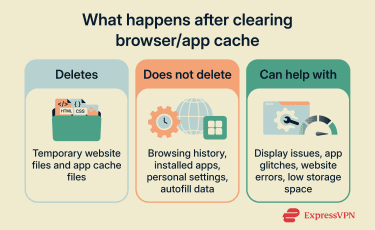
When should you clear your cache
Cache systems automatically update or remove stale data, so routine manual clearing usually isn’t necessary. In most cases, clearing the cache is most useful when there is a specific issue to troubleshoot.
Common signs you should clear cache
Clearing the cache may help in a few situations:
- Apps freezing or crashing: An app frequently lags, freezes, or closes on its own. This can happen if stored temporary files no longer match the current version.
- Non-responsive features: Buttons, menus, links, and other page elements appear clickable but don’t respond, which may indicate outdated or corrupted stored files.
- Low storage: A device is running out of storage despite no new apps or media being added. On mobile devices, accumulated cached files can take up a noticeable share of limited storage.
- Broken page layouts: Pages look partially loaded or jumbled with inconsistent text formatting, distorted spacing, or missing visual elements.
- Repeated site loading/display errors: Some errors can be triggered or prolonged by stale/corrupted cached files, though many server errors are caused by problems on the website’s side.
- Login and session issues: Sign-ins fail despite correct credentials, or sessions end unexpectedly. In this case, clearing cookies/site data and cache may be necessary.
- Slower browsing: Websites and apps load unusually slowly despite a stable connection. However, sites may feel slower immediately after clearning cache while files are re-fetched.
For desktop browsers in particular, if issues affect only one website, a hard refresh can reload that page without clearing the entire browser cache. In many browsers, this forces the browser to re-fetch key files (such as images, CSS, and JavaScript) rather than relying on stored copies. Common shortcuts include Ctrl + Shift + R (Windows/Linux) or Cmd + Shift + R (Mac), and in some cases CTRL + F5.
How often should you clear cache
No fixed schedule is required. Most browsers keep cached files between sessions by default, and clearing on a recurring basis is optional rather than standard maintenance. Clearing cache is typically done occasionally, based on a need such as troubleshooting or reclaiming storage, rather than daily or weekly.
If regular clearing is preferred for shared-device privacy or administrative policy reasons, some browsers support automatic clearing on exit.
How to clear cache on popular devices and browsers
Cache settings vary by browser and operating system. Follow the steps for your specific device below.
Chrome browser (desktop)
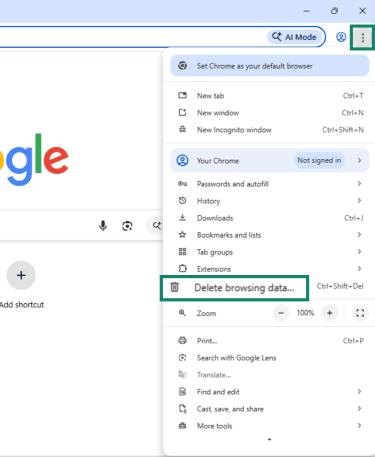
- Open Google Chrome.
- Select the three-dot menu > Delete browsing data.
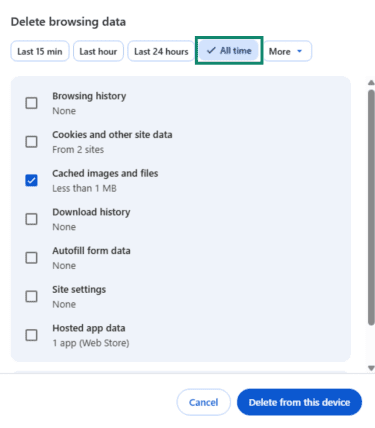
- Select a Time range for how far back you want your data deleted (e.g., All time for the entire cache).
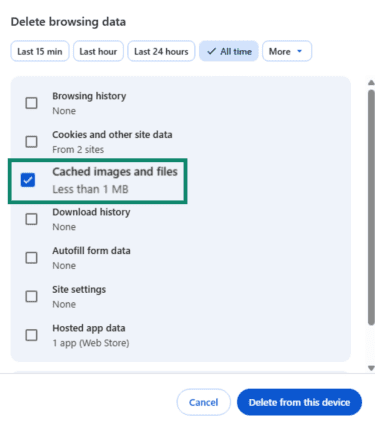
- Check Cached images and files. Leave browsing history, cookies, and other site data unchecked if the goal is to clear cached files without signing out of websites or removing some site preferences.
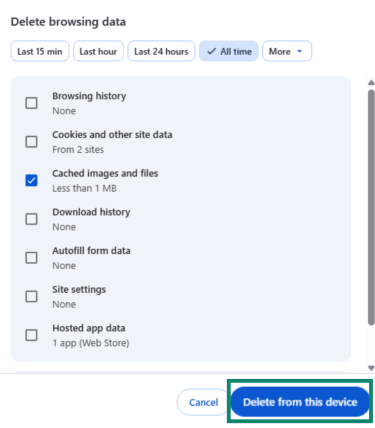
- Click Delete from this device or Delete data.
Android (Chrome + app cache)
Delete cache on the Android Chrome browser
- Open Chrome.
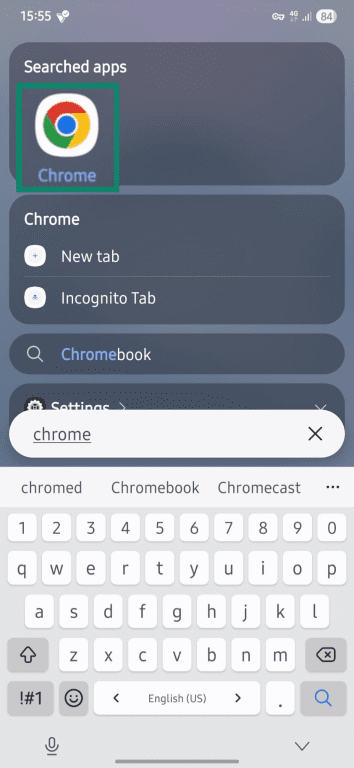
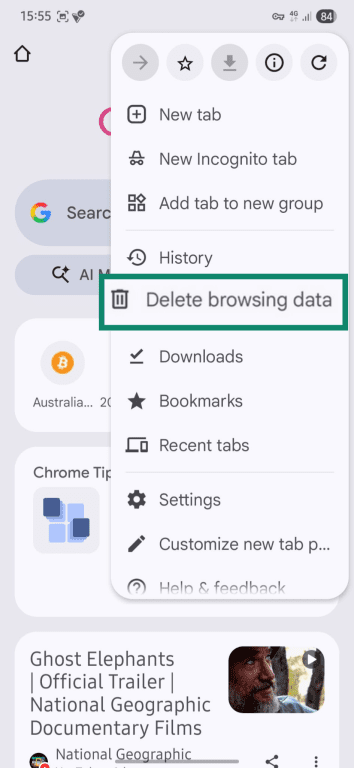
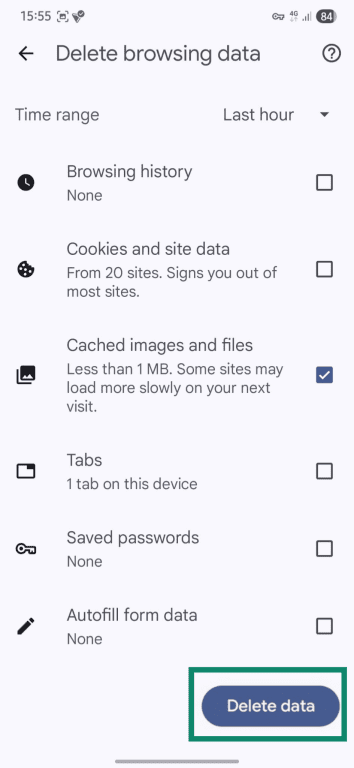
- Tap the three-dot menu and select Delete browsing data. On some versions, you'll need to tap the three-dot menu > Settings > Privacy and security > Delete browsing data.
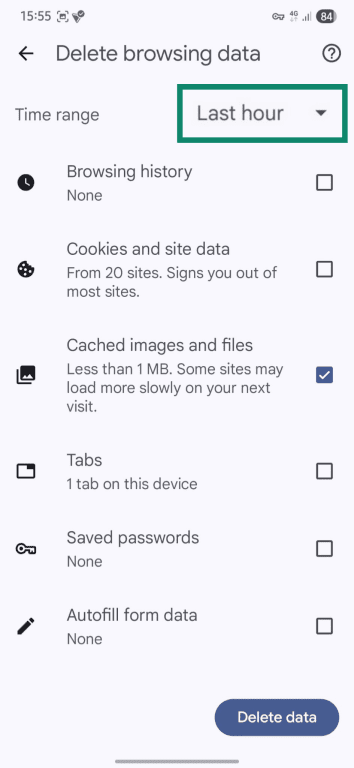
- Tap More options to see additional categories (optional).

- If you choose More options, choose a time range.
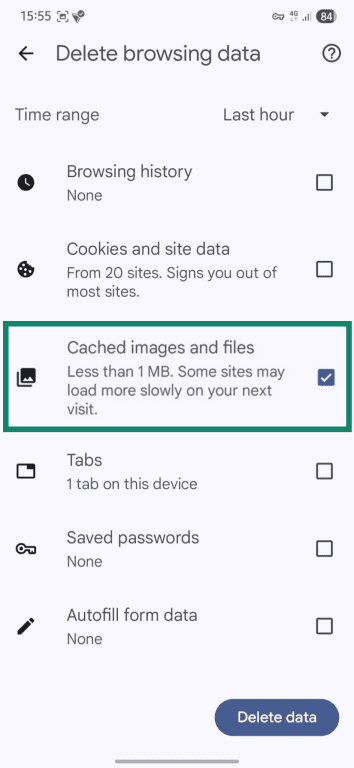
- Keep only the Cached images and files checked.
- Tap Delete data.
Delete app cache on Android
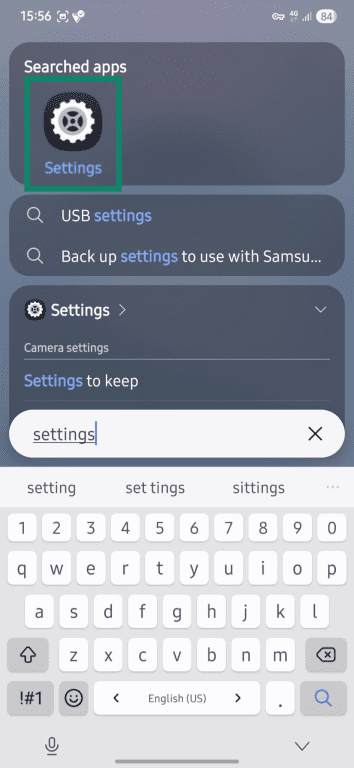
- Swipe up on the home screen, then search for Settings, or go there directly if you know where it is.
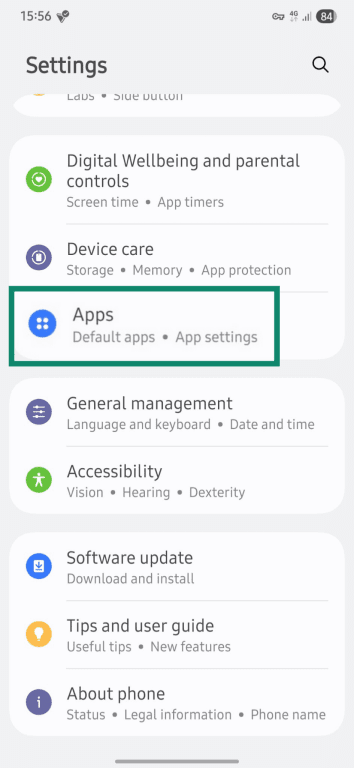
- Open Apps (or Apps & notifications, depending on your device).
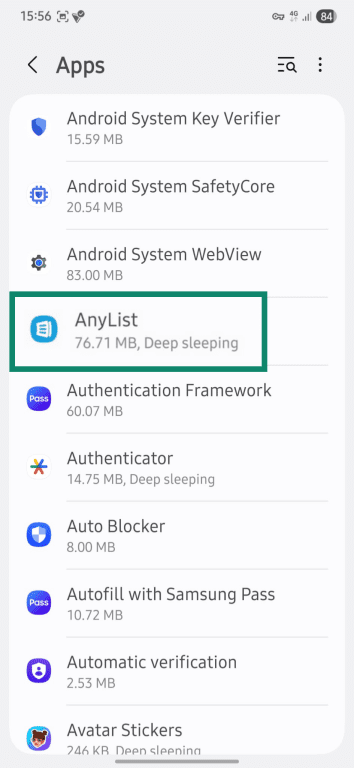
- Select the app you want to troubleshoot.
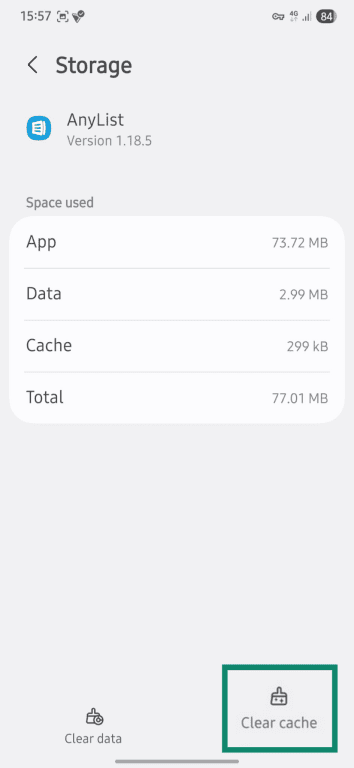
- Tap Storage (or Storage & cache).
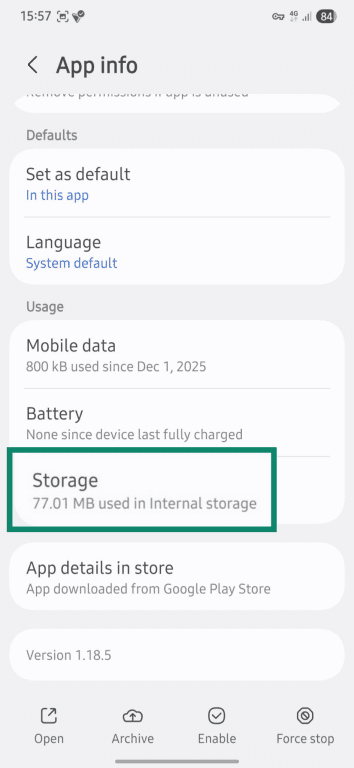
- Tap Clear cache to remove temporary files only.
Safari browser (Mac)
This method clears cached website files and typically doesn't remove cookies, browsing history, or saved passwords.
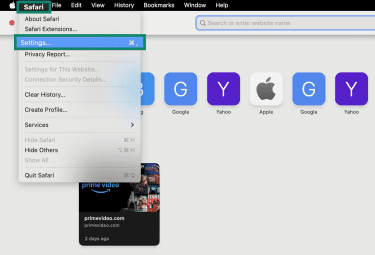
- Open Safari.
- Click the Safari menu (top-left) and select Settings.
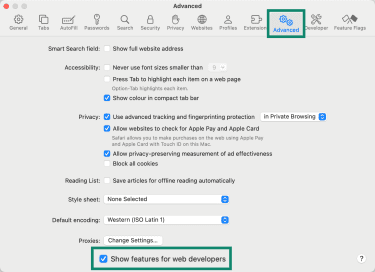
- Go to the Advanced tab and enable Show features for web developers.
- Open the Develop menu and select Empty Caches (or Empty Caches for All Profiles, if shown).
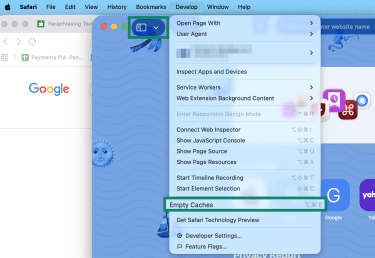
iPhone (Safari cache/browsing data + app cache approach)
Delete data for Safari
iOS doesn’t provide a clear "cache-only" button in Safari. However, the method below clears all the stored website data, including browsing history, cookies, and cached files.
- Open Settings and go to Apps.
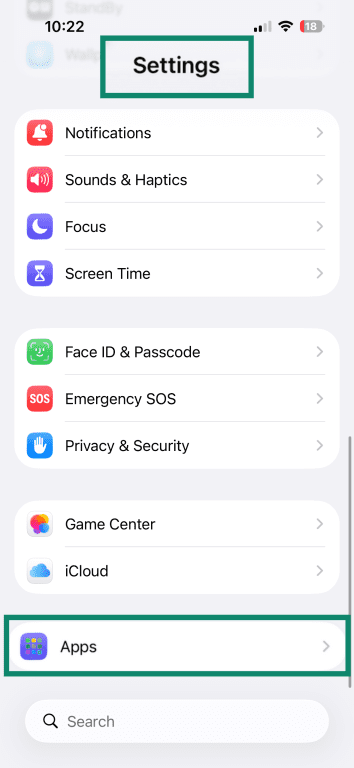
- Find and open Safari.
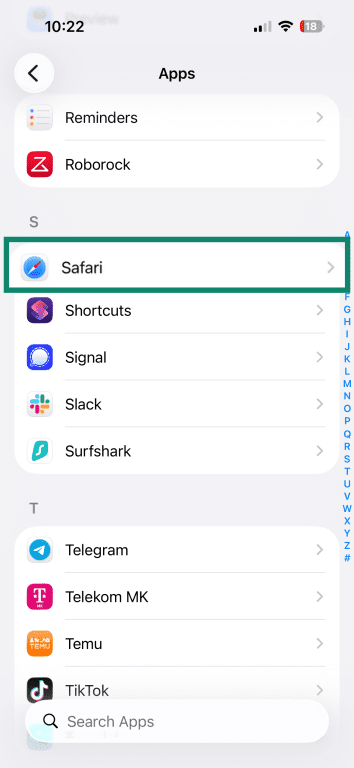
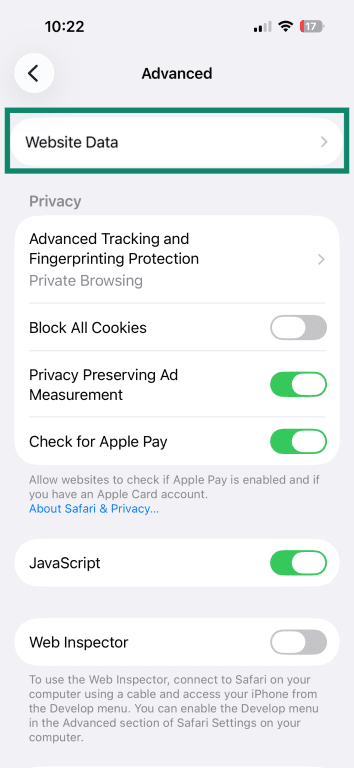
- Scroll down and tap Advanced.
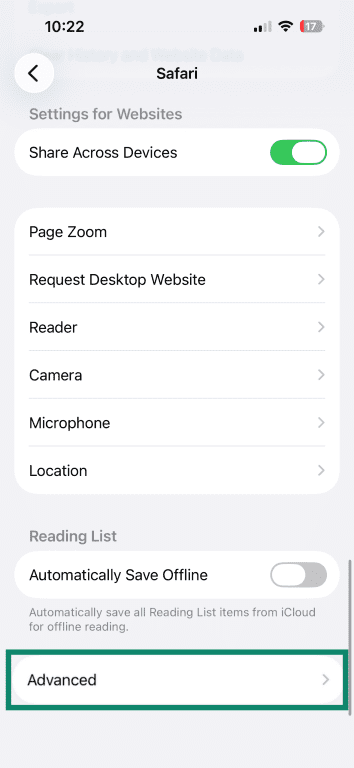
- Tap Website Data.
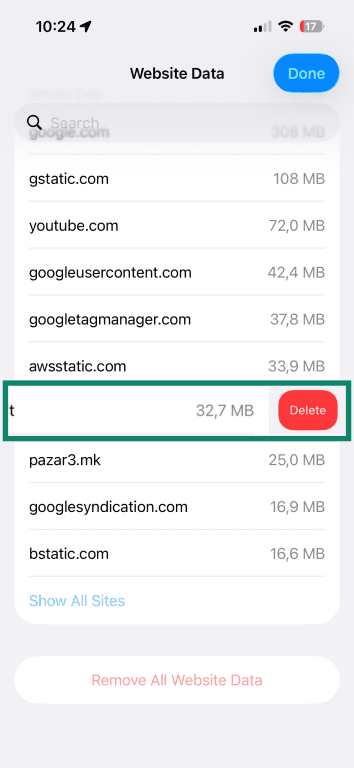
- Swipe left and press Delete to remove all data for a specific website.
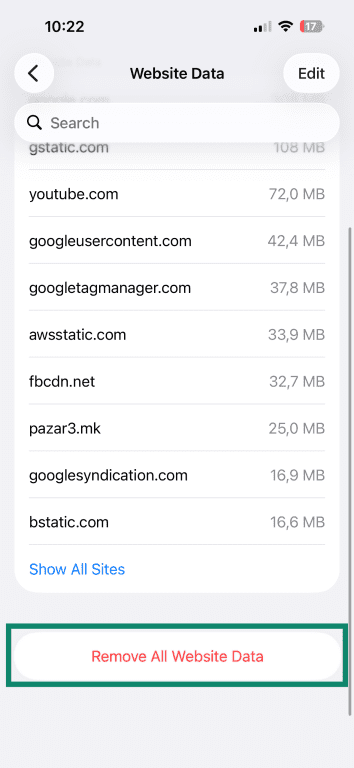
- You can also select Remove All Website Data at the bottom and tap Remove Now to clear all websites.
Delete app cache
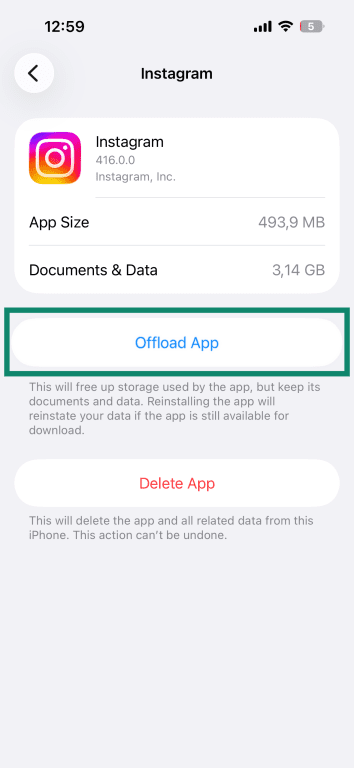
iOS doesn’t offer a universal “clear cache” button for most apps. The closest built-in option is Offload App, which temporarily removes the app itself to free up storage while keeping account data, documents, and settings. This can reduce app size, but it may not fully reset app-stored data.
- Open Settings and go to General.
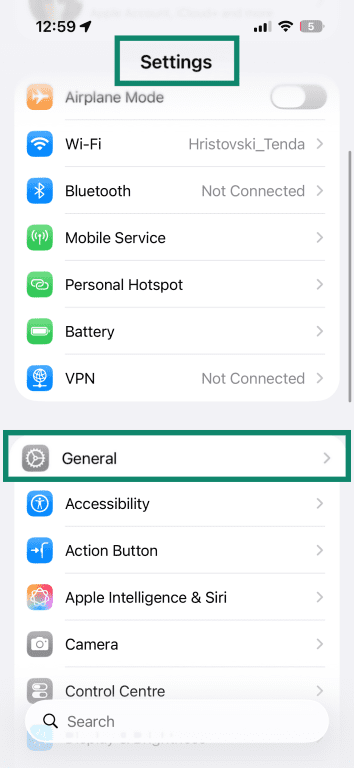
- Select iPhone Storage.
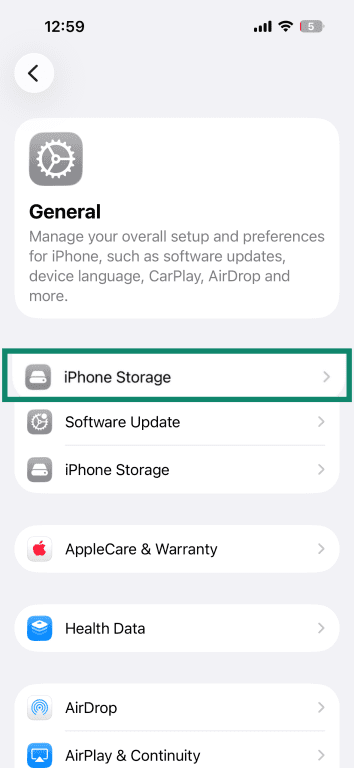
- Tap the app you want to clear the cache for.
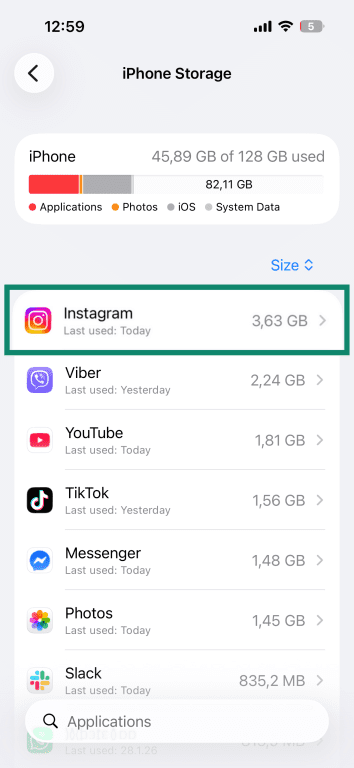
- Select Offload App. The app icon remains on the home screen. Tapping it reinstalls the app and reconnects it to existing data.
Further reading: How to clear cache on Instagram, TikTok, Twitter (X), and Snapchat.
FAQ: Common questions about cache
What is cache used for?
Is it safe to clear cache?
Will clearing cache delete passwords?
Why does my cache keep coming back?
Does clearing cache speed up my device?
Take the first step to protect yourself online. Try ExpressVPN risk-free.
Get ExpressVPN

















 Support Center
  Live Chat
  FAQ
FAQ