 Celebrate with up to 80% off
Gmail confidential mode: What it does and how to use it


Gmail confidential mode is a feature in Gmail that lets the sender set conditions on how an email is accessed and used after delivery. While it can help limit how recipients interact with an email, this mode has limitations to consider when sending or sharing sensitive information and content.
How Gmail confidential mode works
Confidential mode is built directly into Gmail's compose window. When you turn it on, the message isn’t delivered as a traditional email. Instead, Gmail replaces the message body and any attachments with a link hosted on Google's servers. Only the subject line and that link travel over standard email infrastructure via the Simple Mail Transfer Protocol (SMTP).
Confidential mode works in Gmail on the web and in the Gmail mobile app, and it’s available to personal Gmail users and most Google Workspace accounts, depending on organizational policies.
Overview of Gmail confidential mode features
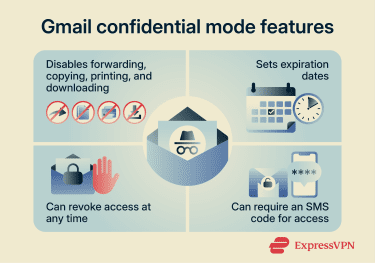
By default, Gmail confidential mode disables forwarding, copying, printing, and downloading of the email content and attachments. This isn’t optional, so if you use this mode as a sender, you can’t turn this off.
That said, the rest of the controls that confidential mode offers are configurable. These include:
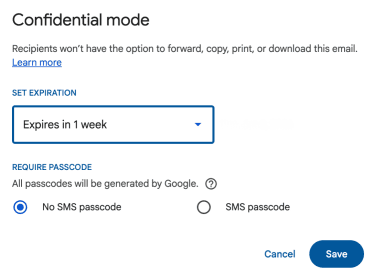
- Setting an expiration date for the email: The sender has to select an expiration date of 1 day, 1 week, 1 month, 3 months, or 5 years. The setting applies to the message body and any attachments included in the confidential email.
- Removing recipient access after sending: The sender can remove access to the email for any recipient at any time, including before the expiration date. The next time the recipient tries to open the email, they will see a message that access has been revoked.
- Require an SMS passcode to open the email: The sender can require recipients to verify their identity using a code sent to their phone number before they can open the email.
How confidential mode works for Gmail vs. non-Gmail recipients
Gmail recipients can view confidential messages directly in their inbox, much like they would view a standard email. The only extra step they may have to go through is entering an SMS code if the sender enabled SMS passcode verification.
Non-Gmail recipients don’t open confidential emails directly inside their inbox the same way as standard email content. Instead, they receive an email with a link to view the confidential message.
Clicking it opens the content in a browser-based viewer hosted by Google. If no SMS passcode was set, they may receive a separate passcode via email from Google before they can view the content. If an SMS passcode was set, they receive a code by text message.
What applies equally to both Gmail and non-Gmail recipients is the sender’s control over access: recipients can’t change the expiration date or restore access after it has been revoked.
What happens when a confidential email expires
When a confidential email expires, recipients can no longer access the message through the link provided in the email.
Importantly, Gmail also doesn’t delete the message from the sender's account. It remains in the Sent folder and can be viewed by the sender, or the sender can renew access. The expiration controls access for the recipient only.
How to use Gmail confidential mode
The steps differ slightly between Gmail in a browser and the Gmail app. Follow the version that matches where you’re sending the message.
Step-by-step guide for using confidential mode
How to set up confidential mode on a desktop
You can enable confidential mode from the compose window on Gmail. To do that:
- Open Gmail on your computer and log into your account.
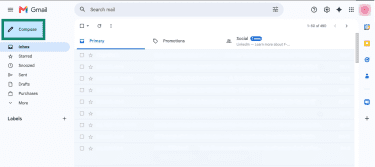
- Click Compose to open a new message window and draft your email.
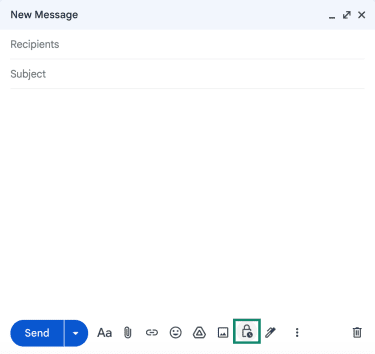
- Click the lock icon in the bottom row.
- Choose an expiration window. Click SMS passcode or No SMS passcode, then click Save.
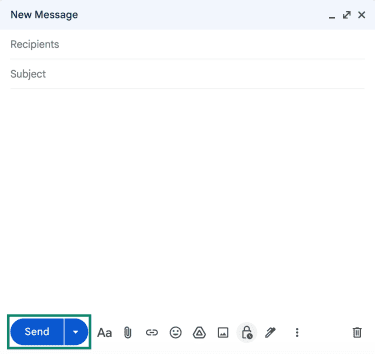
- Compose your message if you haven’t already and click Send.
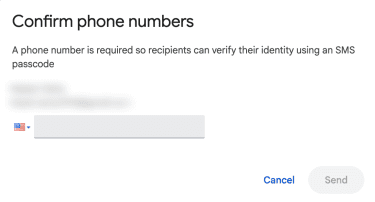
- If you selected SMS passcode earlier, enter the recipient’s phone number in the pop-up. Then, click Send.
How to use confidential mode on mobile devices
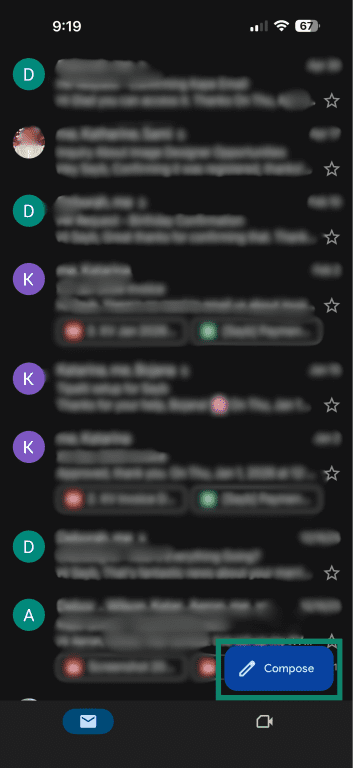
- Open the Gmail app and tap the Compose button to open a new message window.
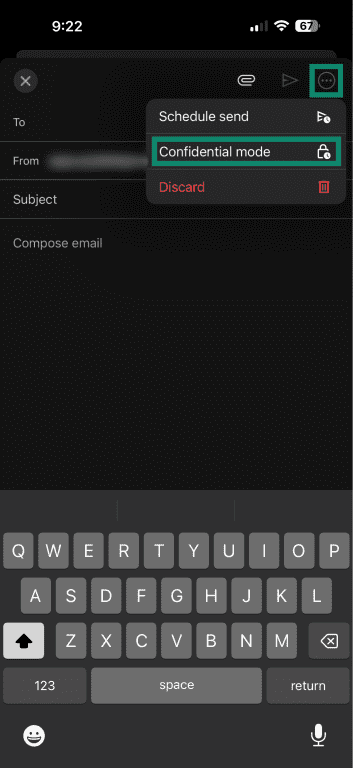
- Tap the three-dot menu on the top right, then tap Confidential mode.
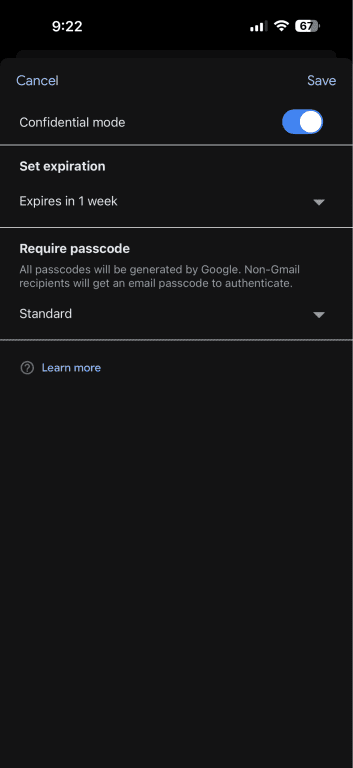
- Toggle on Confidential mode, set the expiration window, choose whether to require a passcode, and then tap Save.
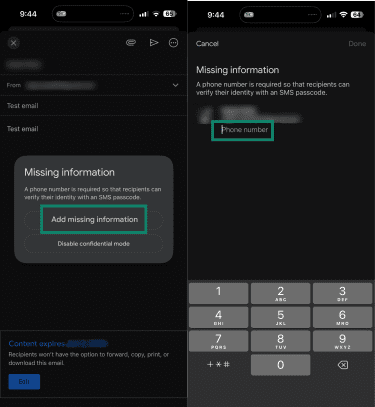
- If you chose SMS passcode under the Require passcode field earlier, you’ll have to enter the recipient’s phone number, which Google will use to verify their identity to access the email.
How to remove access before the expiration date
To remove access to a sent email before the expiration date, follow these steps on both desktop and mobile:
- Open your Gmail’s Sent folder.
- Open the email you want to remove access for and click Remove access.
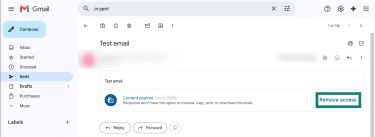
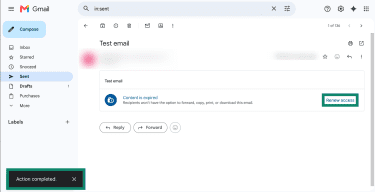
- Gmail will confirm that access has been removed. You can restore access later by selecting Renew access in the same message.
What Gmail confidential mode is designed for
Some scenarios you might want to use Gmail confidential mode include:
- Limiting how long a recipient can access an email.
- Preventing the casual forwarding of information.
- Retaining the ability to revoke access if circumstances change.
Best practices for Gmail confidential mode
After deciding confidential mode fits the message, these practices can help further secure your communications:
- Use shorter expiration windows: A shorter access period reduces how long the message remains reopenable through Gmail.
- Verify phone numbers: SMS passcodes become less reliable if the sender enters the wrong number during setup.
- Keep subject lines low-detail: Subject lines can still appear in inbox previews, notifications, and email records outside the confidential message itself.
- Remove access once it’s not needed: Some situations change before the selected expiration date, making earlier access removal more appropriate.
When to reconsider using Gmail confidential mode
Gmail confidential mode might not be suitable if the message needs stronger protection or if the recipient needs further access, such as when:
- The message contains very sensitive data that requires stronger protection.
- The content shouldn’t be photographed, copied, or captured on the recipient's device.
- The recipient has a legitimate reason to download, print, or archive the message.
Confidential mode also focuses on what a recipient can do with your message after it's sent. It doesn't change how your real email address is shared with services that contact you in the first place. If reducing exposure of your real email address is the concern, services like ExpressMailGuard let you use disposable aliases when signing up for apps, newsletters, or shopping sites, forwarding mail to your real inbox without exposing your actual address. ExpressMailGuard works with any email provider, including Gmail.
FAQ
Can recipients screenshot confidential emails?
Can I edit the expiration date after sending?
Can the recipient reply to a confidential email?
Does Gmail confidential mode use encryption?
Does Gmail confidential mode work for business accounts?
Can admins disable Gmail confidential mode?